This known issue occurs when the Data Migration Tool is run against a vCenter Server with MS SQL Express that has been updated (for example, if vCenter Server 4.0 is updated to Update 2 or if vCenter Server 2.5 is updated to vCenter Server 4.0.)
When vCenter Server is upgraded, the value of the following registry keys are switched from Bundled to Custom:
•In Windows 2003 – HKEY_LOCAL_MACHINE\SOFTWARE\VMware, Inc.\VMware VirtualCenter\DbServerType
•In Windows 2008 – HKEY_LOCAL_MACHINE\SOFTWARE\Wow6432Node\VMware, Inc.\VMware VirtualCenter\DbServerTypeThe database migration tool fails to properly backup the database when this value is set to Custom, even though there are no observable error messages displayed. If the value is manually changed back to Bundled, then the database tool properly backs up and restores the database to the vCenter Server 4.1 machine. The backup part of the script checks if the DSN forwards to a localhost or a remote location to determine if the database is local or not. However, the Custom value is used by the restore part of the script which considers that the database is remote and does not restore the database dump created by the backup part.
Changing the registry value from Custom to Bundled before launching the backup.bat script resolves this issue. If you have already gone through the database migration, you can still resolve this issue by performing these steps after making the registry change.
To change the registry value from Custom to Bundled:
1.On the machine you are trying to perform the backup, go to Start > Run, type regedit, and click OK.
2.For Windows 2003 navigate to the registry key HKEY_LOCAL_MACHINE\SOFTWARE\VMware, Inc.\VMware VirtualCenter or for Windows 2008 navigate to HKEY_LOCAL_MACHINE\SOFTWARE\Wow6432Node\VMware, Inc.\VMware VirtualCenter.
3.Right-click the DbServerType value in the right hand pane, and click Modify.
4.Change the value from Custom to Bundled, and click OK.
5.Launch the backup.bat script as normal.
6.Ensure that vCenter Server is not already installed on the target server. If it is installed, uninstall it. If you do not uninstall it, the installation process fails.
7.Launch install.bat and follow the Installation Wizard.
Thursday, December 30, 2010


Tuesday, December 07, 2010
vSphere Client Error parsing the server “SERVER IP” “clients.xml” file. Login will continue, contact your system administrator
This is solution for xml error
Remove this KB980773 seems to have undesired effect on MS DotNet Framework required by the VMware vSphere client to run. I believe we will have to wait for VMware to fix it or to push Microsoft to fix it
1. Download the file system.dll. This file is typically located in %SystemRoot%\Microsoft.NET\Framework\v2.0.50727\ directory of a non-Windows 7 or Windows 2008 R2 machine with .NET v3.5 SP1 installed.
2. Copy the file to C:\Program Files (x86)\VMware\Infrastructure\Virtual Infrastructure Client\Launcher\lib.
Note: If the lib directory does not exist, create it.
3. Open VpxClient.exe.config in a text editor. The file is located at C:\Program Files (x86)\VMware\Infrastructure\Virtual Infrastructure Client\Launcher.
4. Add the following three lines to VpxClient.exe.config, just before :
5. From Windows 2008 R2 or Windows 7 System Properties, click the Advanced tab > Environment Variables.
6. Create a new System variable called DEVPATH and assign the value:
C:\Program Files (x86)\VMware\Infrastructure\Virtual Infrastructure Client\Launcher\Lib
Note: For 32bit operating systems, replace Program Files (x86)with Program Files.
You can now launch vSphere Client from a Windows 7 or Windows 2008 R2 machine. You may have to right-click on the vSphere Client icon and choose Run as administrator.
Remove this KB980773 seems to have undesired effect on MS DotNet Framework required by the VMware vSphere client to run. I believe we will have to wait for VMware to fix it or to push Microsoft to fix it
1. Download the file system.dll. This file is typically located in %SystemRoot%\Microsoft.NET\Framework\v2.0.50727\ directory of a non-Windows 7 or Windows 2008 R2 machine with .NET v3.5 SP1 installed.
2. Copy the file to C:\Program Files (x86)\VMware\Infrastructure\Virtual Infrastructure Client\Launcher\lib.
Note: If the lib directory does not exist, create it.
3. Open VpxClient.exe.config in a text editor. The file is located at C:\Program Files (x86)\VMware\Infrastructure\Virtual Infrastructure Client\Launcher.
4. Add the following three lines to VpxClient.exe.config, just before :
5. From Windows 2008 R2 or Windows 7 System Properties, click the Advanced tab > Environment Variables.
6. Create a new System variable called DEVPATH and assign the value:
C:\Program Files (x86)\VMware\Infrastructure\Virtual Infrastructure Client\Launcher\Lib
Note: For 32bit operating systems, replace Program Files (x86)with Program Files.
You can now launch vSphere Client from a Windows 7 or Windows 2008 R2 machine. You may have to right-click on the vSphere Client icon and choose Run as administrator.
Fault issues
Common Fault issues in VMware
Infrastructure
1007819 Dealing with an unresponsive virtual machine | 1007802 Confirming a virtual machine is unresponsive 1007808 Ensuring a virtual machine is not inaccessible due to a VMware VirtualCenter issue 1007818 Dealing with unresponsive guest OS issues | 1007805 Locating a virtual machine log files on an ESX host 1007813 Troubleshooting a virtual machine that has become unresponsive because of an ESX host | 1000674 Can't stop or kill virtual machine 1007813 Troubleshooting a virtual machine that has become unresponsive because of an ESX host | 1004344 Identifying causes of not being able to power cycle ESX Server virtual machines 1007814 Troubleshooting a virtual machine that is unresponsive because of configuration issues | ||
1007808 Ensuring a virtual machine is not inaccessible due to a VMware VirtualCenter issue | 1003895 Stopping, starting, or restarting the VirtualCenter Server service | 1002687 Virtual machine stops responding in a Power On state in VirtualCenter | 7114568 Cannot Power on Virtual Machines, "Not enough licenses installed to perform operation" Error Message | 1004592 Vmware VirtualCenter console displays handshake error. | ||
1007813 Troubleshooting a virtual machine that has become unresponsive because of an ESX host | 1003751 Verifying that ESX virtual machine storage is accessible 1003659 Identifying shared storage issues with ESX 3.x 1004005 [Internal] Third Party System Management agents in the Service Console | 1004144 ESX Server virtual machines stop responding due to shared storage connectivity issues 1006791 Server stops responding and shows errors on a purple screen | 1003755 Verifying sufficient free disk space for an ESX virtual machine 10051 Virtual machine does not power on because of missing or locked files | 1003564 Investigating disk space on an ESX host 1003690 Ensuring your hardware is functioning correctly | ||
1007814 Troubleshooting a virtual machine that is unresponsive because of configuration issues | 1005734 Troubleshooting a virtual machine that stops responding or fails when the CD-ROM entry is ATAPI 1003164 Guest stops responding after connecting a USB CD-ROM | 1001637 Virtual machine does not power on and there is high CPU reservation | 1002025 Virtual machine stops responding during backup | 1002836 Why snapshot removal can stop a virtual machine virtual machine for long time | ||
1007818 Dealing with unresponsive guest OS issues | 1004007 Investigating operating system disk space | 1007577 Do not use guest OS performance tools to monitor virtual machine performance | 1007866 Using Windows Event Viewer to identify the cause of an unresponsive or failed virtual machine | 1004764 Unable to shutdown Windows using Shutdown Guest option | ||
Monday, November 22, 2010
System Management in VMWare
Common system
management issues in VMware Infrastructure
1003926 | 1003895 | 1003928 | 1003971 | 1003979 | 1003996 |
1003684 Overview | 1003718 | ||||
1004070 | 1003486 | ||||
1003409 | 1003480 Changing 1003490 | 1003486 1003496 | 1003487 | 1003494 | 1003495 |
1004002 | 1004028 | 1003496 | 1004089 | ||
1004050 Troubleshooting | 1005593 | 1005594 Ensuring | 1005870 | ||
1003870 | 1003486 | 1003494 | 1003487 | 1003887 | |
1003869 | 1003486 | 1003895 | 1003487 | ||
1003561 | 1003631 Restarting | 1003564 | 1003634 | 1003496 | |
1003807 Unable | 1003486 | 1003906 Verifying | 8375637 | 1003808 | 1003487 |
1003691 Diagnosing | 1003692 | 1003735 | 1003713 | 1003486 Testing | 1003714 |
1003734 | 1002662 1003791 | 1003728 1003496 | 1003486 1003780 | 1003735 | 1003736 |
1003839 | 1003486 Testing | 1002811 Port | |||
1003792 | 1003490 | 1003736 | 1003791 | 1003496 | 1003659 |
Wednesday, October 20, 2010
Virtual Networking Features of the VMware vNetwork Distributed Switch and Cisco Nexus 1000V Switches
VMware vNetwork Standard Switch
Cisco Nexus 1000V Series Switches
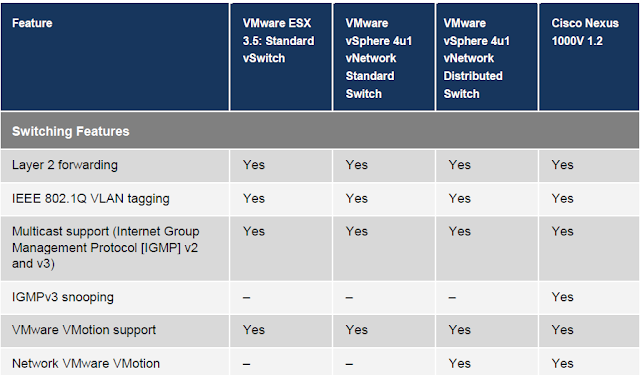


The VMware vNetwork Standard Switch (vSS) is the base-level virtual networking alternative. It extends the familiar appearance, configuration, and capabilities of the standard virtual switch (vSwitch) in VMware ESX 3.5 to ESX 4.0 and vSphere 4.
VMware vNetwork Distributed Switch
The VMware vNetwork Distributed Switch (vDS) is new with vSphere 4. The VMware vDS extends the feature set of the VMware Standard Switch, while simplifying network provisioning, monitoring, and management through an abstracted, single distributed switch representation of multiple VMware ESX and ESXi Servers in a VMware data center.
Cisco Nexus 1000V Series Switches
Cisco Nexus™ 1000V Series Switches are the result of a Cisco and VMware collaboration building on the VMware vNetwork third-party vSwitch API of VMware vDS and the industry-leading switching technology of the Cisco Nexus Family of switches. Featuring the Cisco NX-OS Software data center operating system, the Cisco Nexus 1000V Series extends the virtual networking feature set to a level consistent with physical Cisco switches and brings advanced data center networking, security, and operating capabilities to the vSphere environment. It provides end-to-end physical and virtual network provisioning, monitoring, and administration with virtual machine–level granularity using common and existing network tools and interfaces. The Cisco Nexus 1000V Series transparently integrates with VMware vCenter Server to provide a consistent virtual machine provisioning workflow while offering features well suited for data center–class applications, VMware View, and other mission-critical virtual machine deployments.
VIRTUAL FEATURE COMPARISION


Wednesday, October 13, 2010
VCENTER MIGRATION FROM 4.0 to 4.1
Hi Every One!!!!
Vcenter is used for maintaining the esx server from a centralized place with user permission and cluster creation and the licensing issues. while migration time from 4.0 to 4.1, we need to follow these steps for getting old database which is stored in 4.0 to 4.1.
Before migration All the service of vcenter should be stop
VMware VirtualCenter Server
VMware VirtualCenter Management Webservices
VMware vCenter Update Manager Service
Mount the vcenter in the old vcenter machine and open the cd and copy the Datamigration folder to C:\Datamigration
Extract all the file in the same folder
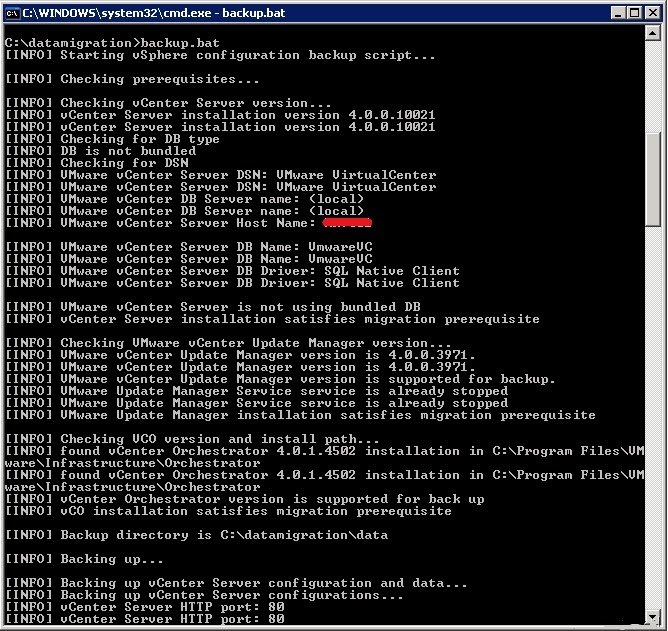
Navigate to C:\Datamigration\ and run backup.bat , the script will backup all configuration settings from your recent vCenter installation and database. (Software builds, used ports, database information, server names and VUM Settings/Patches etc.).. once finished all the important data is stored in C:\Datamigration\Data\
If there are any errors while making the backup… check this and fix before you go further!
Now you need to copy the C:\Databasemigration\ folder to your new planned vCenter 4.1 server. You can do this by share, copy this on USB stick or whatever.
Migrate the database and install vCenter 4.1:
- Login to the new vCenter server;
- Mount the new VMware vCenter Server 4.1 and modules
Open CMD:








If there are any errors while making the backup… check this and fix before you go further!
Now you need to copy the C:\Databasemigration\ folder to your new planned vCenter 4.1 server. You can do this by share, copy this on USB stick or whatever.
Migrate the database and install vCenter 4.1:
- Login to the new vCenter server;
- Mount the new VMware vCenter Server 4.1 and modules
Open CMD:
- Navigate to C:\Data migration\ and run install.bat. The script will check if the correct data is present..
If you used a different name for your new vCenter server press Yes.. to continue
Then you must select the vCenter 4.1 and VUM installation source. In my case the mounted ISO has driveletter F:\
The configuration will be validated, correct ports numbers, vCenter serial number etc.. all good..
.. The vCenter Installation is started
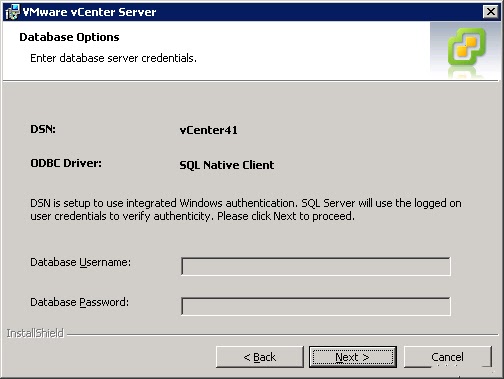
I already installed a Microsoft SQL 2005 Enterprise server (local) and created a 32 bit ODBC connection, THEN select “vCenter41” DSN
If needed, give the correct credentials
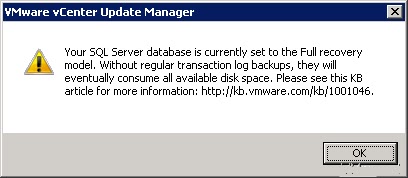
You can modify this later, please check: http://kb.vmware.com/kb/1001046 for more information
- I changed the installation path to D:\Program Files\VMware\Infrastructure\ .. default location is C:\..\.
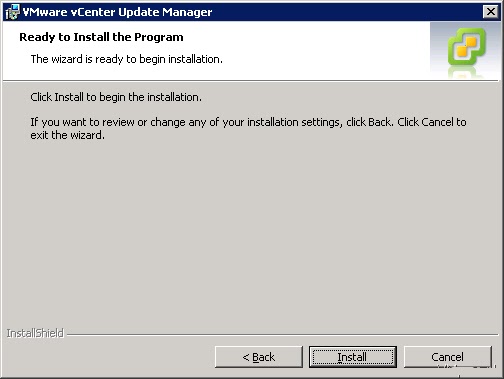
Oke, the installation was not so difficult. After clicking finish the install.bat will continue with the VMware Update Manager database migration and installation.
VMware Update Manager – Database migration and installation software:
As you can see “vCenter Server migration installed completed successfully” great
The install.bat script will continue and check again if the selected VUM ports are available and if the copied data migratable is for the new VUM database location
For VMware Update Manager you need to create a 64-Bit DSN. You can create this here: C:\WINDOWS\SysWOW64\odbcad32.exe .. oke, thats done.. select the VUM (already created before installation) database.
The installation and patch download location is by default C:\.. I prefer to install this data on a separate disk.. so I changed the installation path to D:\…\..
Now you can connect your vCenter server and manage your hosts and VM’s.. sometimes you can’t!
Tip before connect the vCenter:
- Reboot your new vCenter 4.1 server;

- On the ESX host: Restart your management services: service mgmt-vmware restart
- On the ESX host: Use a text editor to view/change the IP address inside the xxx.xxx.xxx.xxx tags the following file:/etc/opt/vmware/vpxa/vpxa.cfg
Finally result:

Successful migration process of vCenter 4.0 to new 4.1 server
I Hope Every Body Enjoyed .Problem has been solved !!!!!!!!!!!!!!!!!!!!!!!!!!!
Tuesday, October 12, 2010


Template Customization In VMware On windows 2008
for eg: goto 2003 cd 1
goto support folder----> Tool-------->Deploy.cab ( extract that file in folder like windows2003)
copy that files in the below given path in sysprep folder......•If vCenter Server is installed on Windows Server 2008,is %ALLUSERSPROFILE%\VMware\VMware VirtualCenter\sysprep which translates to C:\ProgramData\VMware\VMware VirtualCenter\sysprep by default.
 •If vCenter Server is installed on any other Windows operating system,
 is %ALLUSERSPROFILE%\Application Data\VMware VirtualCenter\sysprep\ which translates to C:\Documents and Settings\All Users\Application Data\VMware\VMware VirtualCenter\sysprep\ by default

After copying the file ,Check Once whether custimazion option will be available or Not...
Windows 2003 Server SP1
Download at
http://www.microsoft.com/downloads/details.aspx?familyid=A34EDCF2-EBFD-4F99-BBC4-E93154C332D6\svr2003 5.2.3790.1830
(srv03_sp1_rtm.050324-1447)
Windows 2003 Server SP2
Download at
http://www.microsoft.com/downloads/details.aspx?FamilyID=93f20bb1-97aa-4356-8b43-9584b7e72556\svr2003 5.2.3790.3959
(srv03_sp2_rtm.070216-1710)
Windows 2003 Server R2
Download at
http://www.microsoft.com/downloads/details.aspx?FamilyID=93f20bb1-97aa-4356-8b43-9584b7e72556&displaylang=en\svr2003 5.2.3790.1830
(srv03_sp1_rtm.050324-1447)
if Any Doubts , Please send a mail Satishchirala@gmail.com
Please give comments , if the problem is solved or not
goto support folder----> Tool-------->Deploy.cab ( extract that file in folder like windows2003)
copy that files in the below given path in sysprep folder......•If vCenter Server is installed on Windows Server 2008,

After copying the file ,Check Once whether custimazion option will be available or Not...
Windows 2003 Server SP1
Download at
http://www.microsoft.com/downloads/details.aspx?familyid=A34EDCF2-EBFD-4F99-BBC4-E93154C332D6
(srv03_sp1_rtm.050324-1447)
Windows 2003 Server SP2
Download at
http://www.microsoft.com/downloads/details.aspx?FamilyID=93f20bb1-97aa-4356-8b43-9584b7e72556
(srv03_sp2_rtm.070216-1710)
Windows 2003 Server R2
Download at
http://www.microsoft.com/downloads/details.aspx?FamilyID=93f20bb1-97aa-4356-8b43-9584b7e72556&displaylang=en
(srv03_sp1_rtm.050324-1447)
if Any Doubts , Please send a mail Satishchirala@gmail.com
Please give comments , if the problem is solved or not
Wednesday, October 06, 2010
esxcfg-nics –l Display the nic card information
esxcfg-vswitch –l Display the information of Switch
esxcfg-vswitch –a vswitch1 Creates a virtual switch
esxcfg-vswitch –A “service console” vswitch1 Creating a service console switch
esxcfg-vswitch –L vmnic1 vswitch1
esxcfg-vswitch –v-p “service console” vswitch0
esxcfg-vswif –a vswif0 –I-n -P “SERVICE CONSOLE “ Changing the ip addresss of vswif
vmware-cmd -l Display the guest OS information
vm-support –x Display the VMID Value
vm-support –Xfor stoping the guest OS ( KillIng Vm)
service mgmt-vmware restart Restart the Management agent of Vmware Esx server
service network restart Restart the network Service
esxcfg-vswif –l List of virtual network Adapters
esxcfg-vswitch –l List of virtual switch
esxcfg-vswif --del vswif0 Deleting the vswif adapter
esxcfg-vswitch -d vSwitch0 Deleting the vSwitch
cat /etc/sysconfig/network
NETWORKING=yes
GATEWAYDEV=vswif0
HOSTNAME=host.domain.com
GATEWAY=nnn.nnn.nnn.nnn verify that the settings in the network file are correct
service /etc/init.d/ vmware-webAccess status
service /etc/init.d/ vmware-webAccess start
service /etc/init.d/ vmware-webAccess restart
service /etc/init.d/ vmware-webAccess stop Web Browser is not working, we need to check this commands
service vmware-vpxa restart Restart the virtual center agent
vmfsktools -i-d diskformat Copying the VMFS file from one place to another place
Simple Service Commands
Get help on a command man reboot or
reboot –help This works with both Linux & ESX commands. Q to quit
Gives you short explanation
View Last 10 commands history
tail History normally list your past commands, used with tail it will filter to show only the last 10
Clear the screen Clear Same as CLS in a cmd prompt
Switch to being root su - It is regarded as good practice to login with a VM Administrator
account and then switch to being ROOT if required. The minus sign switches bash to ROOT and ROOT’s environment. Without you would have the rights of root, but command might fail due to being in the incorrect path for the executable
Currently logged in user whoami or
id I find it especially important to know who I am in all situations.
Failure to know who you are can result in surprising results. Id
shows your group membership as well
Change the Date/Time date –u 0701180504 The –u switch indicates the UTC format is being used. Numbers
equate to mm/dd/hh/mm/yy
Display ESX Version
Number vmware –v Should display information along this kind “VMware ESX Server
2.5.0 build-11343
Get help on a Command vmware –? or vmware –help Prints to console a quick list of switches and their meaning
Get a manual page on
a command man su Open a more detail page of information about a command or utility
Search Man pages by index Makewhatis
man –k partition Makewhatis man –k partition
Reboot ESX Server Reboot Reboots the server, does not ask are you sure… are you really sure?
Shutdown shutdown now “Server shutting down for maintenance” Shuts down the VM’s and stops remote access – physical console is still accessible
Shutdown & Halt shutdown –h now “server shutting down for maintenance” Shuts down the VM’s; Stops Remote Access – and does a fault halt of the system… Swap file is deactivated, and volumes un-mounted
File & Folder Management
Purpose Syntax Example/Sample Notes
List files ls -l In PuTTy this colour codes the files, and directories and shows Type,Permissions, Group, User, Size (b) Date, and filename
List files with a pause ls –l
more The
is the pipe symbol commonly found where the \ is on a UK keyboard
List hidden files ls –a l Shows files that are hidden – files are made hidden if prefixed with a period, such as ./install
Full Path location Pwd Like what would see in a DOS command prompt
Return to the root cd / You have to put a space between d and /
Return one directory
up cd .. Again, you need a space between cd and ..
Go to home directory cd CD on its own returns you to the home directory of the current users
Type the contents of a
file cat instructor1.vmx
less instructor1.vmx Same as the TYPE command in DOS
Works better with longer files – use the keystroke [Q] to quit like
Man
Search for string
inside a file grep lavericm /etc/passwd Here we are searching for a piece of text called lavericm in the file
called passwd
Use a command
together with grep ls /etc -l
grep vmware Here we are listing all the files in /etc that contain the string vmware
Edit the contents of a
file nano –w /etc/fstab -w disables word wrap and stops unwanted carriage returns
Control+X, [ENTER] [ENTER] exits nano and saves a file
Create/Delete a
directory mkdir /vmimages/iso
rmdir /vmimages/iso Without file path, directory made relative to your path
Delete a file rm filename If your deleting lots of files rm –f *.txt will delete all the txt files but will NOT prompt you
Mount a CD at the Service Console mount /dev/cdrom
ls –l /mnt/cdrom Root only!
Mount an ISO at the
Service Console mkdir /mnt/isocd
mount -o loop -t iso9660 -r /vmimges/esx2.1.iso
/mnt/isocd Create directory for the mount point
-o loop means mount the device as a block device
-t iso9660 means its using the iso file system (as opposed to say Joliet) –r means to mount read-only
Copy a file cp /vmimges/w2k3.iso /vmfs/local Becareful with the use of wildcards if you try to copy every file with *.* as you would with DOS/Windows – this would misout files that DID NOT have extension. So w2k3.iso would be copied but w2k3 would not…
Securely copy a file
from one ESX server
to another scp /vmimages/w2kadvsrv-sp4.iso
root@esxinstructor2.education.vmw:/vmimages/ This uses secure copy. You will prompted with some security
warnings on the first copy for the first time. You will have manually
type the password of the remote machine
Renaming a file/folder mv w2k3.iso cdw2k3.iso Move because effectively, any rename is move procedure. As can be seen in the MUI
Find a file whereis vmsnap.pl If you know the name of a file but can’t remember where it is stored
the whereis command is dead easy to use
Find a file find / -iname '*.conf' Find is much more powerful but can take longer based on your
search criteria. Search here begins at the root / and is caseinsensitive
search by using –iname and ‘*.conf’ would find every
conf file – note ‘ ’ are required – these are ‘single quotes’ not
“double-quotes”
Find a file which
contains a piece of
text find /usr/lib/vmware-mui -iname '*.html' -exec grep -il
'Download VMware Remote Console' {} \; This invokes the find command with the exec switch which allows
you to execute a program based on the find results. Here we are
search every html file which exists in the MUI web directories.
Executing a grep on each file searching for the words ‘Download
VMware Remote Console”. The -i stops case-sensitivity, and –l
causes the file name to printed to the service console session. The
{} is a variable holder for the search string in single quotes. The \
and ; are “end of expression” and “end of command” marker
Find new files find / -mount -mtime -1 -print / is the search point, -mount volumes mounted, -mtime is the
duration and –print is the format for output to the screen
Find files of N size find / -mount –size +10240k This would find files off / taking up more than 10MG
Compress a single file gzip instructor1.dsk –best Works best with single files such a DSK file Caution, automatically deletes original and adds a gz extension to
the file name
hostname newhostname
vi /etc/hosts
vi /etc/sysconfig/network
service network restart
nage Services
service mgmt-vmware restart
Restart Network:
service network restart
Web Access
service vmware-webAccess restart
VMkernel authorization daemon
/etc/init.d/vmware-vmkauthd stop
/etc/init.d/vmware-vmkauthd start
VMware late init tools
service vmware-late restart
Virtualcenter agent
service vmware-vpxa restart
service restart
vmware-cmd –l
Sample:
[root@esxhost root]# vmware-cmd -l
/vmfs/volumes/44ee9812-da790870-b7f7-00145e1b5242/cumuli/cumuli.vmx
/vmfs/volumes/44ebf538-51cc7998-2525-00145e1b556a/printer/printer.vmx
List path and names of .registered VM vmx files on the present host
Very important!
Use the path with the UUID (vmfslabel) where requested in vmware-cmd
use vmware-cmd -l command to retrieve the UUID list
vmware-cmd /vmfs/volume/vmfslabel/VMName/VMName.vmx getstate
Sample:
[root@esxhost root]# vmware-cmd /vmfs/volumes/44ebf538-51cc7998-2525-00145e1b556a/printer/printer.vmx getstate
getstate() = on
Retrieve power state of the VM: off, on, suspended, stuck
getstat
vmware-cmd vmfs/volume/vmfslabel/VMName/VMName.vmx reset trysoft
Sample:
[root@esxhost root]# vmware-cmd /vmfs/volumes/44ebf538-51cc7998-2525-00145e1b556a/printer/printer.vmx reset trysoft
reset(trysoft) = 1 ls VM-Disk and VMFS Management in the console
vmkfstools -X
Extend virtual Disk
vmkfstools -X 12G ./testing.vmdk
To extend an existing Virtual Disk to 12GB. Instead of G you can use M for Megabytes
With the same command you can shrink the disk (only for ESX Version prior to 3.0) if you choose a smaller than the present size. Be aware if the shrinked size is smaller as the partition size in the guest there might be a data losse or a corrupted system resulting!
In some cases the shrink command must be issued with the --force option:
vmkfstools -X 4G ./testing.vmdk --force
For shrinking on ESX 3.0x use the VMWare Converter (download from the VMware Website for freee). Point the source and destination to the same ESX Host.
If you receive an error one parameter was incorrect the size might be smaller as the original size!
If you have blanks in the file or directory name, mask the full path with '
vmkfstools -i
To export or clone a virtual disk from VMFS
vmfsktools -i-d diskformat
Example:
Copy from one vmfs to another:
Source=/vmfs/volumes/esxpublic/testvm2.vmdk
Destination=/vmfs/volumes/production/testvmnew2.vmdk
vmkfstools -i /vmfs/volumes/esxpublic/testvm2.vmdk /vmfs/volumes/production/testvmnew2.vmdk
Export to ext3 partition:
Source=/vmfs/volumes/esxpublic/testvm2.vmdk
Destination=/vmimages/testvm2.vmdk
vmkfstools -i /vmfs/esxpublic/testvm2.vmdk -d 2gbsparse /vmimages/testvm2.vmdk
vmkfstools -E
Rename files associated with a specified virtual disk
vmkfstools -U
Delete Virtualdisk
Delete files associated with the specified virtual disk.
vmkfstools -c 4000M ./file.vmdk
To create a new empty virtual disk
vmkfstools -c 300G -a lsilogic /vmfs/volume/vmfslabel/directory/newdisk.vmdk
or in current directory
vmkfstools -c 300G -a lsilogic ./newdisk.vmdk
This command is very useful because you can use user-friendly names for the disks
For further options enter man vmkfstools
Reboot the VM. First try a nice shutdown, then if necessary force a shutdown before reboot
reboot
vmware-cmd vmfs/volume/vmfslabel/VMName/VMName.vmx start
Sample:
[root@esxhost root]# vmware-cmd /vmfs/volumes/44ebf538-51cc7998-2525-00145e1b556a/printer/printer.vmx start
start() = 1
Power on the VM
start
vmware-cmd vmfs/volume/vmfslabel/VMName/VMName.vmx stop trysoft
vmware-cmd vmfs/volume/vmfslabel/VMName/VMName.vmx stop hard
Sample:
[root@esxhost root]# vmware-cmd /vmfs/volumes/44ebf538-51cc7998-2525-00145e1b556a/printer/printer.vmx stop trysoft
stop(trysoft) = 1
Shutdown/halt the VM. First try a nice shutdown, then if necessary force a shutdown. Finally power off.
shutdown
vmware-cmd vmfs/volume/vmfslabel/VMName/VMName.vmx suspend
Sample:
[root@esxhost root]# vmware-cmd /vmfs/volumes/44ebf538-51cc7998-2525-00145e1b556a/printer/printer.vmx suspend
suspend() = 1
Suspend the VM
suspend vmware-cmd vmfs/volume/vmfslabel/VMName/VMName.vmx hassnapshot
Sample:
[root@esxhost root]# vmware-cmd /vmfs/volumes/44ebf538-51cc7998-2525-00145e1b556a/printer/printer.vmx hassnapshot
hassnapshot() =
Query if VM has a snapshot
snapshot vmware-cmd createsnapshot name description quiesce memory
Sample:
[root@esxhost root]# vmware-cmd /vmfs/volumes/44ebf538-51cc7998-2525-00145e1b556a/printer/printer.vmx createsnapshot "snap1" "before patching" quiesce memory
createsnapshot(snap1 before patching quiesce memory) = 1
[root@esxhost root]# vmware-cmd /vmfs/volumes/44ebf538-51cc7998-2525-00145e1b556a/printer/printer.vmx hassnapshot
hassnapshot() = 1
Quiesce will quiesce file system writes
Memory will grab the memory state (will lose pings during this)
createsnapshot vmware-cmd vmfs/volume/vmfslabel/VMName/VMName.vmx revertsnapshot
Sample:
[root@vs03 root]# vmware-cmd /vmfs/volumes/44ebf538-51cc7998-2525-00145e1b556a/printer/printer.vmx revertsnapshot
revertsnapshot() = 1
Revert to previous created snapshot (you loose the current VM state!)
revertsnapshot vmware-cmd vmfs/volume/vmfslabel/VMName/VMName.vmx removesnapshots
Sample:
[root@esxhost root]# vmware-cmd /vmfs/volumes/44ebf538-51cc7998-2525-00145e1b556a/printer/printer.vmx removesnapshots
removesnapshots() = 1
Remove previous created snapshots (you keep the current VM state!)
removesnapshots vmware-cmd -s register vmfs/volume/vmfslabel/VMName/VMName.vmx
Sample:
[root@esxhost root]# vmware-cmd -s register /vmfs/volumes/44ebf538-51cc7998-2525-00145e1b556a/printer/printer.vmx
register(/vmfs/volumes/44ebf538-51cc7998-2525-00145e1b556a/printer/printer.vmx) = 1
Register VM (add to inventory)
register vmware-cmd -s unregister vmfs/volume/vmfslabel/VMName/VMName.vmx
Sample:
[root@esxhost root]# vmware-cmd -s unregister /vmfs/volumes/44ebf538-51cc7998-2525-00145e1b556a/printer/printer.vmx
unregister(/vmfs/volumes/44ebf538-51cc7998-2525-00145e1b556a/printer/printer.vmx) = 1
Unregister VM (add to inventory)
unregister vmware-cmd vmfs/volume/vmfslabel/VMName/VMName.vmx answer
Sample:
[root@esxhost root]# vmware-cmd /vmfs/volumes/44ebf538-51cc7998-2525-00145e1b556a/printer/printer.vmx answer
No questions pending.
In this case there is no pending input request. If there is any pending input request you will be promptet for the answser.
answer pending request for userinput
Cd etc/init.d
Service vmware-webacess start
Cd etc/ssh
Nano sshd_config
Root permission yes
Esc
CtrlX
Save yes
/sbin/service /ssh restart Service Command sshd on same path
/sbin/service /ssh start
/sbin/service /ssh status
Manage Services
Management agent on the host:
service mgmt-vmware restart
Restart Network:
service network restart
Web Access
service vmware-webAccess restart
VMkernel authorization daemon
/etc/init.d/vmware-vmkauthd stop
/etc/init.d/vmware-vmkauthd start
VMware late init tools
service vmware-late restart
Virtualcenter agent
service vmware-vpxa restart
service restart
vmware-cmd –l
Sample:
[root@esxhost root]# vmware-cmd -l
/vmfs/volumes/44ee9812-da790870-b7f7-00145e1b5242/cumuli/cumuli.vmx
/vmfs/volumes/44ebf538-51cc7998-2525-00145e1b556a/printer/printer.vmx
List path and names of .registered VM vmx files on the present host
Very important!
Use the path with the UUID (vmfslabel) where requested in vmware-cmd
use vmware-cmd -l command to retrieve the UUID list
vmware-cmd /vmfs/volume/vmfslabel/VMName/VMName.vmx getstate
Sample:
[root@esxhost root]# vmware-cmd /vmfs/volumes/44ebf538-51cc7998-2525-00145e1b556a/printer/printer.vmx getstate
getstate() = on
Retrieve power state of the VM: off, on, suspended, stuck
getstat
vmware-cmd vmfs/volume/vmfslabel/VMName/VMName.vmx reset trysoft
Sample:
[root@esxhost root]# vmware-cmd /vmfs/volumes/44ebf538-51cc7998-2525-00145e1b556a/printer/printer.vmx reset trysoft
reset(trysoft) = 1
vmkfstools VM-Disk and VMFS Management in the console
vmkfstools -X
Extend virtual Disk
vmkfstools -X 12G ./testing.vmdk
To extend an existing Virtual Disk to 12GB. Instead of G you can use M for Megabytes
With the same command you can shrink the disk (only for ESX Version prior to 3.0) if you choose a smaller than the present size. Be aware if the shrinked size is smaller as the partition size in the guest there might be a data losse or a corrupted system resulting!
In some cases the shrink command must be issued with the --force option:
vmkfstools -X 4G ./testing.vmdk --force
For shrinking on ESX 3.0x use the VMWare Converter (download from the VMware Website for freee). Point the source and destination to the same ESX Host.
If you receive an error one parameter was incrorrect the size might be smaller as the original size!
If you have blanks in the file or directoryname, mask the full path with '
vmkfstools -i
To export or clone a virtual disk from VMFS
vmfsktools -i-d diskformat
Example:
Copy from one vmfs to another:
Source=/vmfs/volumes/esxpublic/testvm2.vmdk
Destination=/vmfs/volumes/production/testvmnew2.vmdk
vmkfstools -i /vmfs/volumes/esxpublic/testvm2.vmdk /vmfs/volumes/production/testvmnew2.vmdk
Export to ext3 partition:
Source=/vmfs/volumes/esxpublic/testvm2.vmdk
Destination=/vmimages/testvm2.vmdk
vmkfstools -i /vmfs/esxpublic/testvm2.vmdk -d 2gbsparse /vmimages/testvm2.vmdk
vmkfstools -E
Rename files associated with a specified virtual disk
vmkfstools -U
Delete Virtualdisk
Delete files associated with the specified virtual disk.
vmkfstools -c 4000M ./file.vmdk
To create a new empty virtual disk
vmkfstools -c 300G -a lsilogic /vmfs/volume/vmfslabel/directory/newdisk.vmdk
or in current directory
vmkfstools -c 300G -a lsilogic ./newdisk.vmdk
This command is very useful because you can use user-friendly names for the disks
For further options enter man vmkfstools
Reboot the VM. First try a nice shutdown, then if necessary force a shutdown before reboot
reboot
vmware-cmd vmfs/volume/vmfslabel/VMName/VMName.vmx start
Sample:
[root@esxhost root]# vmware-cmd /vmfs/volumes/44ebf538-51cc7998-2525-00145e1b556a/printer/printer.vmx start
start() = 1
Power on the VM
start
vmware-cmd vmfs/volume/vmfslabel/VMName/VMName.vmx stop trysoft
vmware-cmd vmfs/volume/vmfslabel/VMName/VMName.vmx stop hard
Sample:
[root@esxhost root]# vmware-cmd /vmfs/volumes/44ebf538-51cc7998-2525-00145e1b556a/printer/printer.vmx stop trysoft
stop(trysoft) = 1
Shutdown/halt the VM. First try a nice shutdown, then if necessary force a shutdown. Finally power off.
shutdown
vmware-cmd vmfs/volume/vmfslabel/VMName/VMName.vmx suspend
Sample:
[root@esxhost root]# vmware-cmd /vmfs/volumes/44ebf538-51cc7998-2525-00145e1b556a/printer/printer.vmx suspend
suspend() = 1
Suspend the VM
suspend vmware-cmd vmfs/volume/vmfslabel/VMName/VMName.vmx hassnapshot
Sample:
[root@esxhost root]# vmware-cmd /vmfs/volumes/44ebf538-51cc7998-2525-00145e1b556a/printer/printer.vmx hassnapshot
hassnapshot() =
Query if VM has a snapshot
snapshot vmware-cmd createsnapshot name description quiesce memory
Sample:
[root@esxhost root]# vmware-cmd /vmfs/volumes/44ebf538-51cc7998-2525-00145e1b556a/printer/printer.vmx createsnapshot "snap1" "before patching" quiesce memory
createsnapshot(snap1 before patching quiesce memory) = 1
[root@esxhost root]# vmware-cmd /vmfs/volumes/44ebf538-51cc7998-2525-00145e1b556a/printer/printer.vmx hassnapshot
hassnapshot() = 1
Quiesce will quiesce file system writes
Memory will grab the memory state (will lose pings during this)
createsnapshot vmware-cmd vmfs/volume/vmfslabel/VMName/VMName.vmx revertsnapshot
Sample:
[root@vs03 root]# vmware-cmd /vmfs/volumes/44ebf538-51cc7998-2525-00145e1b556a/printer/printer.vmx revertsnapshot
revertsnapshot() = 1
Revert to previous created snapshot (you loose the current VM state!)
revertsnapshot vmware-cmd vmfs/volume/vmfslabel/VMName/VMName.vmx removesnapshots
Sample:
[root@esxhost root]# vmware-cmd /vmfs/volumes/44ebf538-51cc7998-2525-00145e1b556a/printer/printer.vmx removesnapshots
removesnapshots() = 1
Remove previous created snapshots (you keep the current VM state!)
removesnapshots vmware-cmd -s register vmfs/volume/vmfslabel/VMName/VMName.vmx
Sample:
[root@esxhost root]# vmware-cmd -s register /vmfs/volumes/44ebf538-51cc7998-2525-00145e1b556a/printer/printer.vmx
register(/vmfs/volumes/44ebf538-51cc7998-2525-00145e1b556a/printer/printer.vmx) = 1
Register VM (add to inventory)
register vmware-cmd -s unregister vmfs/volume/vmfslabel/VMName/VMName.vmx
Sample:
[root@esxhost root]# vmware-cmd -s unregister /vmfs/volumes/44ebf538-51cc7998-2525-00145e1b556a/printer/printer.vmx
unregister(/vmfs/volumes/44ebf538-51cc7998-2525-00145e1b556a/printer/printer.vmx) = 1
Unregister VM (add to inventory)
unregister vmware-cmd vmfs/volume/vmfslabel/VMName/VMName.vmx answer
Sample:
[root@esxhost root]# vmware-cmd /vmfs/volumes/44ebf538-51cc7998-2525-00145e1b556a/printer/printer.vmx answer
No questions pending.
In this case there is no pending input request. If there is any pending input request you will be promptet for the answser.
answer pending request for userinput
o delete and recreate a virtual switch and Service Console from the command line:
Note: On your system the vswif, vmnic, vSwitch numbers and network settings are different.
esxcfg-nics –l Display the nic card information
esxcfg-vswitch –l Display the information of Switch
esxcfg-vswitch –a vswitch1 Creates a virtual switch
esxcfg-vswitch –A “service console” vswitch1 Creating a service console switch
esxcfg-vswitch –L vmnic1 vswitch1
esxcfg-vswitch –v-p “service console” vswitch0
esxcfg-vswif –a vswif0 –I-n -P “SERVICE CONSOLE “ Changing the ip addresss of vswif
vmware-cmd -l Display the guest OS information
vm-support –x Display the VMID Value
vm-support –Xfor stoping the guest OS ( KillIng Vm)
service mgmt-vmware restart Restart the Management agent of Vmware Esx server
service network restart Restart the network Service
esxcfg-vswif –l List of virtual network Adapters
esxcfg-vswitch –l List of virtual switch
esxcfg-vswif --del vswif0 Deleting the vswif adapter
esxcfg-vswitch -d vSwitch0 Deleting the vSwitch
cat /etc/sysconfig/network
NETWORKING=yes
GATEWAYDEV=vswif0
HOSTNAME=host.domain.com
GATEWAY=nnn.nnn.nnn.nnn verify that the settings in the network file are correct
service /etc/init.d/ vmware-webAccess status
service /etc/init.d/ vmware-webAccess start
service /etc/init.d/ vmware-webAccess restart
service /etc/init.d/ vmware-webAccess stop Web Browser is not working, we need to check this commands
service vmware-vpxa restart Restart the virtual center agent
vmfsktools -i-d diskformat Copying the VMFS file from one place to another place
Simple Service Commands
Get help on a command man reboot or
reboot –help This works with both Linux & ESX commands. Q to quit
Gives you short explanation
View Last 10 commands history
tail History normally list your past commands, used with tail it will filter to show only the last 10
Clear the screen Clear Same as CLS in a cmd prompt
Switch to being root su - It is regarded as good practice to login with a VM Administrator
account and then switch to being ROOT if required. The minus sign switches bash to ROOT and ROOT’s environment. Without you would have the rights of root, but command might fail due to being in the incorrect path for the executable
Currently logged in user whoami or
id I find it especially important to know who I am in all situations.
Failure to know who you are can result in surprising results. Id
shows your group membership as well
Change the Date/Time date –u 0701180504 The –u switch indicates the UTC format is being used. Numbers
equate to mm/dd/hh/mm/yy
Display ESX Version
Number vmware –v Should display information along this kind “VMware ESX Server
2.5.0 build-11343
Get help on a Command vmware –? or vmware –help Prints to console a quick list of switches and their meaning
Get a manual page on
a command man su Open a more detail page of information about a command or utility
Search Man pages by index Makewhatis
man –k partition Makewhatis man –k partition
Reboot ESX Server Reboot Reboots the server, does not ask are you sure… are you really sure?
Shutdown shutdown now “Server shutting down for maintenance” Shuts down the VM’s and stops remote access – physical console is still accessible
Shutdown & Halt shutdown –h now “server shutting down for maintenance” Shuts down the VM’s; Stops Remote Access – and does a fault halt of the system… Swap file is deactivated, and volumes un-mounted
File & Folder Management
Purpose Syntax Example/Sample Notes
List files ls -l In PuTTy this colour codes the files, and directories and shows Type,Permissions, Group, User, Size (b) Date, and filename
List files with a pause ls –l
more The
is the pipe symbol commonly found where the \ is on a UK keyboard
List hidden files ls –a l Shows files that are hidden – files are made hidden if prefixed with a period, such as ./install
Full Path location Pwd Like what would see in a DOS command prompt
Return to the root cd / You have to put a space between d and /
Return one directory
up cd .. Again, you need a space between cd and ..
Go to home directory cd CD on its own returns you to the home directory of the current users
Type the contents of a
file cat instructor1.vmx
less instructor1.vmx Same as the TYPE command in DOS
Works better with longer files – use the keystroke [Q] to quit like
Man
Search for string
inside a file grep lavericm /etc/passwd Here we are searching for a piece of text called lavericm in the file
called passwd
Use a command
together with grep ls /etc -l
grep vmware Here we are listing all the files in /etc that contain the string vmware
Edit the contents of a
file nano –w /etc/fstab -w disables word wrap and stops unwanted carriage returns
Control+X, [ENTER] [ENTER] exits nano and saves a file
Create/Delete a
directory mkdir /vmimages/iso
rmdir /vmimages/iso Without file path, directory made relative to your path
Delete a file rm filename If your deleting lots of files rm –f *.txt will delete all the txt files but will NOT prompt you
Mount a CD at the Service Console mount /dev/cdrom
ls –l /mnt/cdrom Root only!
Mount an ISO at the
Service Console mkdir /mnt/isocd
mount -o loop -t iso9660 -r /vmimges/esx2.1.iso
/mnt/isocd Create directory for the mount point
-o loop means mount the device as a block device
-t iso9660 means its using the iso file system (as opposed to say Joliet) –r means to mount read-only
Copy a file cp /vmimges/w2k3.iso /vmfs/local Becareful with the use of wildcards if you try to copy every file with *.* as you would with DOS/Windows – this would misout files that DID NOT have extension. So w2k3.iso would be copied but w2k3 would not…
Securely copy a file
from one ESX server
to another scp /vmimages/w2kadvsrv-sp4.iso
root@esxinstructor2.education.vmw:/vmimages/ This uses secure copy. You will prompted with some security
warnings on the first copy for the first time. You will have manually
type the password of the remote machine
Renaming a file/folder mv w2k3.iso cdw2k3.iso Move because effectively, any rename is move procedure. As can be seen in the MUI
Find a file whereis vmsnap.pl If you know the name of a file but can’t remember where it is stored
the whereis command is dead easy to use
Find a file find / -iname '*.conf' Find is much more powerful but can take longer based on your
search criteria. Search here begins at the root / and is caseinsensitive
search by using –iname and ‘*.conf’ would find every
conf file – note ‘ ’ are required – these are ‘single quotes’ not
“double-quotes”
Find a file which
contains a piece of
text find /usr/lib/vmware-mui -iname '*.html' -exec grep -il
'Download VMware Remote Console' {} \; This invokes the find command with the exec switch which allows
you to execute a program based on the find results. Here we are
search every html file which exists in the MUI web directories.
Executing a grep on each file searching for the words ‘Download
VMware Remote Console”. The -i stops case-sensitivity, and –l
causes the file name to printed to the service console session. The
{} is a variable holder for the search string in single quotes. The \
and ; are “end of expression” and “end of command” marker
Find new files find / -mount -mtime -1 -print / is the search point, -mount volumes mounted, -mtime is the
duration and –print is the format for output to the screen
Find files of N size find / -mount –size +10240k This would find files off / taking up more than 10MG
Compress a single file gzip instructor1.dsk –best Works best with single files such a DSK file Caution, automatically deletes original and adds a gz extension to
the file name
hostname newhostname
vi /etc/hosts
vi /etc/sysconfig/network
service network restart
nage Services
service mgmt-vmware restart
Restart Network:
service network restart
Web Access
service vmware-webAccess restart
VMkernel authorization daemon
/etc/init.d/vmware-vmkauthd stop
/etc/init.d/vmware-vmkauthd start
VMware late init tools
service vmware-late restart
Virtualcenter agent
service vmware-vpxa restart
service restart
vmware-cmd –l
Sample:
[root@esxhost root]# vmware-cmd -l
/vmfs/volumes/44ee9812-da790870-b7f7-00145e1b5242/cumuli/cumuli.vmx
/vmfs/volumes/44ebf538-51cc7998-2525-00145e1b556a/printer/printer.vmx
List path and names of .registered VM vmx files on the present host
Very important!
Use the path with the UUID (vmfslabel) where requested in vmware-cmd
use vmware-cmd -l command to retrieve the UUID list
vmware-cmd /vmfs/volume/vmfslabel/VMName/VMName.vmx getstate
Sample:
[root@esxhost root]# vmware-cmd /vmfs/volumes/44ebf538-51cc7998-2525-00145e1b556a/printer/printer.vmx getstate
getstate() = on
Retrieve power state of the VM: off, on, suspended, stuck
getstat
vmware-cmd vmfs/volume/vmfslabel/VMName/VMName.vmx reset trysoft
Sample:
[root@esxhost root]# vmware-cmd /vmfs/volumes/44ebf538-51cc7998-2525-00145e1b556a/printer/printer.vmx reset trysoft
reset(trysoft) = 1 ls VM-Disk and VMFS Management in the console
vmkfstools -X
Extend virtual Disk
vmkfstools -X 12G ./testing.vmdk
To extend an existing Virtual Disk to 12GB. Instead of G you can use M for Megabytes
With the same command you can shrink the disk (only for ESX Version prior to 3.0) if you choose a smaller than the present size. Be aware if the shrinked size is smaller as the partition size in the guest there might be a data losse or a corrupted system resulting!
In some cases the shrink command must be issued with the --force option:
vmkfstools -X 4G ./testing.vmdk --force
For shrinking on ESX 3.0x use the VMWare Converter (download from the VMware Website for freee). Point the source and destination to the same ESX Host.
If you receive an error one parameter was incorrect the size might be smaller as the original size!
If you have blanks in the file or directory name, mask the full path with '
vmkfstools -i
To export or clone a virtual disk from VMFS
vmfsktools -i-d diskformat
Example:
Copy from one vmfs to another:
Source=/vmfs/volumes/esxpublic/testvm2.vmdk
Destination=/vmfs/volumes/production/testvmnew2.vmdk
vmkfstools -i /vmfs/volumes/esxpublic/testvm2.vmdk /vmfs/volumes/production/testvmnew2.vmdk
Export to ext3 partition:
Source=/vmfs/volumes/esxpublic/testvm2.vmdk
Destination=/vmimages/testvm2.vmdk
vmkfstools -i /vmfs/esxpublic/testvm2.vmdk -d 2gbsparse /vmimages/testvm2.vmdk
vmkfstools -E
Rename files associated with a specified virtual disk
vmkfstools -U
Delete Virtualdisk
Delete files associated with the specified virtual disk.
vmkfstools -c 4000M ./file.vmdk
To create a new empty virtual disk
vmkfstools -c 300G -a lsilogic /vmfs/volume/vmfslabel/directory/newdisk.vmdk
or in current directory
vmkfstools -c 300G -a lsilogic ./newdisk.vmdk
This command is very useful because you can use user-friendly names for the disks
For further options enter man vmkfstools
Reboot the VM. First try a nice shutdown, then if necessary force a shutdown before reboot
reboot
vmware-cmd vmfs/volume/vmfslabel/VMName/VMName.vmx start
Sample:
[root@esxhost root]# vmware-cmd /vmfs/volumes/44ebf538-51cc7998-2525-00145e1b556a/printer/printer.vmx start
start() = 1
Power on the VM
start
vmware-cmd vmfs/volume/vmfslabel/VMName/VMName.vmx stop trysoft
vmware-cmd vmfs/volume/vmfslabel/VMName/VMName.vmx stop hard
Sample:
[root@esxhost root]# vmware-cmd /vmfs/volumes/44ebf538-51cc7998-2525-00145e1b556a/printer/printer.vmx stop trysoft
stop(trysoft) = 1
Shutdown/halt the VM. First try a nice shutdown, then if necessary force a shutdown. Finally power off.
shutdown
vmware-cmd vmfs/volume/vmfslabel/VMName/VMName.vmx suspend
Sample:
[root@esxhost root]# vmware-cmd /vmfs/volumes/44ebf538-51cc7998-2525-00145e1b556a/printer/printer.vmx suspend
suspend() = 1
Suspend the VM
suspend vmware-cmd vmfs/volume/vmfslabel/VMName/VMName.vmx hassnapshot
Sample:
[root@esxhost root]# vmware-cmd /vmfs/volumes/44ebf538-51cc7998-2525-00145e1b556a/printer/printer.vmx hassnapshot
hassnapshot() =
Query if VM has a snapshot
snapshot vmware-cmd createsnapshot name description quiesce memory
Sample:
[root@esxhost root]# vmware-cmd /vmfs/volumes/44ebf538-51cc7998-2525-00145e1b556a/printer/printer.vmx createsnapshot "snap1" "before patching" quiesce memory
createsnapshot(snap1 before patching quiesce memory) = 1
[root@esxhost root]# vmware-cmd /vmfs/volumes/44ebf538-51cc7998-2525-00145e1b556a/printer/printer.vmx hassnapshot
hassnapshot() = 1
Quiesce will quiesce file system writes
Memory will grab the memory state (will lose pings during this)
createsnapshot vmware-cmd vmfs/volume/vmfslabel/VMName/VMName.vmx revertsnapshot
Sample:
[root@vs03 root]# vmware-cmd /vmfs/volumes/44ebf538-51cc7998-2525-00145e1b556a/printer/printer.vmx revertsnapshot
revertsnapshot() = 1
Revert to previous created snapshot (you loose the current VM state!)
revertsnapshot vmware-cmd vmfs/volume/vmfslabel/VMName/VMName.vmx removesnapshots
Sample:
[root@esxhost root]# vmware-cmd /vmfs/volumes/44ebf538-51cc7998-2525-00145e1b556a/printer/printer.vmx removesnapshots
removesnapshots() = 1
Remove previous created snapshots (you keep the current VM state!)
removesnapshots vmware-cmd -s register vmfs/volume/vmfslabel/VMName/VMName.vmx
Sample:
[root@esxhost root]# vmware-cmd -s register /vmfs/volumes/44ebf538-51cc7998-2525-00145e1b556a/printer/printer.vmx
register(/vmfs/volumes/44ebf538-51cc7998-2525-00145e1b556a/printer/printer.vmx) = 1
Register VM (add to inventory)
register vmware-cmd -s unregister vmfs/volume/vmfslabel/VMName/VMName.vmx
Sample:
[root@esxhost root]# vmware-cmd -s unregister /vmfs/volumes/44ebf538-51cc7998-2525-00145e1b556a/printer/printer.vmx
unregister(/vmfs/volumes/44ebf538-51cc7998-2525-00145e1b556a/printer/printer.vmx) = 1
Unregister VM (add to inventory)
unregister vmware-cmd vmfs/volume/vmfslabel/VMName/VMName.vmx answer
Sample:
[root@esxhost root]# vmware-cmd /vmfs/volumes/44ebf538-51cc7998-2525-00145e1b556a/printer/printer.vmx answer
No questions pending.
In this case there is no pending input request. If there is any pending input request you will be promptet for the answser.
answer pending request for userinput
Cd etc/init.d
Service vmware-webacess start
Cd etc/ssh
Nano sshd_config
Root permission yes
Esc
CtrlX
Save yes
/sbin/service /ssh restart Service Command sshd on same path
/sbin/service /ssh start
/sbin/service /ssh status
Manage Services
Management agent on the host:
service mgmt-vmware restart
Restart Network:
service network restart
Web Access
service vmware-webAccess restart
VMkernel authorization daemon
/etc/init.d/vmware-vmkauthd stop
/etc/init.d/vmware-vmkauthd start
VMware late init tools
service vmware-late restart
Virtualcenter agent
service vmware-vpxa restart
service restart
vmware-cmd –l
Sample:
[root@esxhost root]# vmware-cmd -l
/vmfs/volumes/44ee9812-da790870-b7f7-00145e1b5242/cumuli/cumuli.vmx
/vmfs/volumes/44ebf538-51cc7998-2525-00145e1b556a/printer/printer.vmx
List path and names of .registered VM vmx files on the present host
Very important!
Use the path with the UUID (vmfslabel) where requested in vmware-cmd
use vmware-cmd -l command to retrieve the UUID list
vmware-cmd /vmfs/volume/vmfslabel/VMName/VMName.vmx getstate
Sample:
[root@esxhost root]# vmware-cmd /vmfs/volumes/44ebf538-51cc7998-2525-00145e1b556a/printer/printer.vmx getstate
getstate() = on
Retrieve power state of the VM: off, on, suspended, stuck
getstat
vmware-cmd vmfs/volume/vmfslabel/VMName/VMName.vmx reset trysoft
Sample:
[root@esxhost root]# vmware-cmd /vmfs/volumes/44ebf538-51cc7998-2525-00145e1b556a/printer/printer.vmx reset trysoft
reset(trysoft) = 1
vmkfstools VM-Disk and VMFS Management in the console
vmkfstools -X
Extend virtual Disk
vmkfstools -X 12G ./testing.vmdk
To extend an existing Virtual Disk to 12GB. Instead of G you can use M for Megabytes
With the same command you can shrink the disk (only for ESX Version prior to 3.0) if you choose a smaller than the present size. Be aware if the shrinked size is smaller as the partition size in the guest there might be a data losse or a corrupted system resulting!
In some cases the shrink command must be issued with the --force option:
vmkfstools -X 4G ./testing.vmdk --force
For shrinking on ESX 3.0x use the VMWare Converter (download from the VMware Website for freee). Point the source and destination to the same ESX Host.
If you receive an error one parameter was incrorrect the size might be smaller as the original size!
If you have blanks in the file or directoryname, mask the full path with '
vmkfstools -i
To export or clone a virtual disk from VMFS
vmfsktools -i-d diskformat
Example:
Copy from one vmfs to another:
Source=/vmfs/volumes/esxpublic/testvm2.vmdk
Destination=/vmfs/volumes/production/testvmnew2.vmdk
vmkfstools -i /vmfs/volumes/esxpublic/testvm2.vmdk /vmfs/volumes/production/testvmnew2.vmdk
Export to ext3 partition:
Source=/vmfs/volumes/esxpublic/testvm2.vmdk
Destination=/vmimages/testvm2.vmdk
vmkfstools -i /vmfs/esxpublic/testvm2.vmdk -d 2gbsparse /vmimages/testvm2.vmdk
vmkfstools -E
Rename files associated with a specified virtual disk
vmkfstools -U
Delete Virtualdisk
Delete files associated with the specified virtual disk.
vmkfstools -c 4000M ./file.vmdk
To create a new empty virtual disk
vmkfstools -c 300G -a lsilogic /vmfs/volume/vmfslabel/directory/newdisk.vmdk
or in current directory
vmkfstools -c 300G -a lsilogic ./newdisk.vmdk
This command is very useful because you can use user-friendly names for the disks
For further options enter man vmkfstools
Reboot the VM. First try a nice shutdown, then if necessary force a shutdown before reboot
reboot
vmware-cmd vmfs/volume/vmfslabel/VMName/VMName.vmx start
Sample:
[root@esxhost root]# vmware-cmd /vmfs/volumes/44ebf538-51cc7998-2525-00145e1b556a/printer/printer.vmx start
start() = 1
Power on the VM
start
vmware-cmd vmfs/volume/vmfslabel/VMName/VMName.vmx stop trysoft
vmware-cmd vmfs/volume/vmfslabel/VMName/VMName.vmx stop hard
Sample:
[root@esxhost root]# vmware-cmd /vmfs/volumes/44ebf538-51cc7998-2525-00145e1b556a/printer/printer.vmx stop trysoft
stop(trysoft) = 1
Shutdown/halt the VM. First try a nice shutdown, then if necessary force a shutdown. Finally power off.
shutdown
vmware-cmd vmfs/volume/vmfslabel/VMName/VMName.vmx suspend
Sample:
[root@esxhost root]# vmware-cmd /vmfs/volumes/44ebf538-51cc7998-2525-00145e1b556a/printer/printer.vmx suspend
suspend() = 1
Suspend the VM
suspend vmware-cmd vmfs/volume/vmfslabel/VMName/VMName.vmx hassnapshot
Sample:
[root@esxhost root]# vmware-cmd /vmfs/volumes/44ebf538-51cc7998-2525-00145e1b556a/printer/printer.vmx hassnapshot
hassnapshot() =
Query if VM has a snapshot
snapshot vmware-cmd createsnapshot name description quiesce memory
Sample:
[root@esxhost root]# vmware-cmd /vmfs/volumes/44ebf538-51cc7998-2525-00145e1b556a/printer/printer.vmx createsnapshot "snap1" "before patching" quiesce memory
createsnapshot(snap1 before patching quiesce memory) = 1
[root@esxhost root]# vmware-cmd /vmfs/volumes/44ebf538-51cc7998-2525-00145e1b556a/printer/printer.vmx hassnapshot
hassnapshot() = 1
Quiesce will quiesce file system writes
Memory will grab the memory state (will lose pings during this)
createsnapshot vmware-cmd vmfs/volume/vmfslabel/VMName/VMName.vmx revertsnapshot
Sample:
[root@vs03 root]# vmware-cmd /vmfs/volumes/44ebf538-51cc7998-2525-00145e1b556a/printer/printer.vmx revertsnapshot
revertsnapshot() = 1
Revert to previous created snapshot (you loose the current VM state!)
revertsnapshot vmware-cmd vmfs/volume/vmfslabel/VMName/VMName.vmx removesnapshots
Sample:
[root@esxhost root]# vmware-cmd /vmfs/volumes/44ebf538-51cc7998-2525-00145e1b556a/printer/printer.vmx removesnapshots
removesnapshots() = 1
Remove previous created snapshots (you keep the current VM state!)
removesnapshots vmware-cmd -s register vmfs/volume/vmfslabel/VMName/VMName.vmx
Sample:
[root@esxhost root]# vmware-cmd -s register /vmfs/volumes/44ebf538-51cc7998-2525-00145e1b556a/printer/printer.vmx
register(/vmfs/volumes/44ebf538-51cc7998-2525-00145e1b556a/printer/printer.vmx) = 1
Register VM (add to inventory)
register vmware-cmd -s unregister vmfs/volume/vmfslabel/VMName/VMName.vmx
Sample:
[root@esxhost root]# vmware-cmd -s unregister /vmfs/volumes/44ebf538-51cc7998-2525-00145e1b556a/printer/printer.vmx
unregister(/vmfs/volumes/44ebf538-51cc7998-2525-00145e1b556a/printer/printer.vmx) = 1
Unregister VM (add to inventory)
unregister vmware-cmd vmfs/volume/vmfslabel/VMName/VMName.vmx answer
Sample:
[root@esxhost root]# vmware-cmd /vmfs/volumes/44ebf538-51cc7998-2525-00145e1b556a/printer/printer.vmx answer
No questions pending.
In this case there is no pending input request. If there is any pending input request you will be promptet for the answser.
answer pending request for userinput
o delete and recreate a virtual switch and Service Console from the command line:
Note: On your system the vswif, vmnic, vSwitch numbers and network settings are different.
esxcfg-vswitch –l Display the information of Switch
esxcfg-vswitch –a vswitch1 Creates a virtual switch
esxcfg-vswitch –A “service console” vswitch1 Creating a service console switch
esxcfg-vswitch –L vmnic1 vswitch1
esxcfg-vswitch –v
esxcfg-vswif –a vswif0 –I
vmware-cmd -l Display the guest OS information
vm-support –x Display the VMID Value
vm-support –X
service mgmt-vmware restart Restart the Management agent of Vmware Esx server
service network restart Restart the network Service
esxcfg-vswif –l List of virtual network Adapters
esxcfg-vswitch –l List of virtual switch
esxcfg-vswif --del vswif0 Deleting the vswif adapter
esxcfg-vswitch -d vSwitch0 Deleting the vSwitch
cat /etc/sysconfig/network
NETWORKING=yes
GATEWAYDEV=vswif0
HOSTNAME=host.domain.com
GATEWAY=nnn.nnn.nnn.nnn verify that the settings in the network file are correct
service /etc/init.d/ vmware-webAccess status
service /etc/init.d/ vmware-webAccess start
service /etc/init.d/ vmware-webAccess restart
service /etc/init.d/ vmware-webAccess stop Web Browser is not working, we need to check this commands
service vmware-vpxa restart Restart the virtual center agent
vmfsktools -i
Simple Service Commands
Get help on a command man reboot or
reboot –help This works with both Linux & ESX commands. Q to quit
Gives you short explanation
View Last 10 commands history
tail History normally list your past commands, used with tail it will filter to show only the last 10
Clear the screen Clear Same as CLS in a cmd prompt
Switch to being root su - It is regarded as good practice to login with a VM Administrator
account and then switch to being ROOT if required. The minus sign switches bash to ROOT and ROOT’s environment. Without you would have the rights of root, but command might fail due to being in the incorrect path for the executable
Currently logged in user whoami or
id I find it especially important to know who I am in all situations.
Failure to know who you are can result in surprising results. Id
shows your group membership as well
Change the Date/Time date –u 0701180504 The –u switch indicates the UTC format is being used. Numbers
equate to mm/dd/hh/mm/yy
Display ESX Version
Number vmware –v Should display information along this kind “VMware ESX Server
2.5.0 build-11343
Get help on a Command vmware –? or vmware –help Prints to console a quick list of switches and their meaning
Get a manual page on
a command man su Open a more detail page of information about a command or utility
Search Man pages by index Makewhatis
man –k partition Makewhatis man –k partition
Reboot ESX Server Reboot Reboots the server, does not ask are you sure… are you really sure?
Shutdown shutdown now “Server shutting down for maintenance” Shuts down the VM’s and stops remote access – physical console is still accessible
Shutdown & Halt shutdown –h now “server shutting down for maintenance” Shuts down the VM’s; Stops Remote Access – and does a fault halt of the system… Swap file is deactivated, and volumes un-mounted
File & Folder Management
Purpose Syntax Example/Sample Notes
List files ls -l In PuTTy this colour codes the files, and directories and shows Type,Permissions, Group, User, Size (b) Date, and filename
List files with a pause ls –l
more The
is the pipe symbol commonly found where the \ is on a UK keyboard
List hidden files ls –a l Shows files that are hidden – files are made hidden if prefixed with a period, such as ./install
Full Path location Pwd Like what would see in a DOS command prompt
Return to the root cd / You have to put a space between d and /
Return one directory
up cd .. Again, you need a space between cd and ..
Go to home directory cd CD on its own returns you to the home directory of the current users
Type the contents of a
file cat instructor1.vmx
less instructor1.vmx Same as the TYPE command in DOS
Works better with longer files – use the keystroke [Q] to quit like
Man
Search for string
inside a file grep lavericm /etc/passwd Here we are searching for a piece of text called lavericm in the file
called passwd
Use a command
together with grep ls /etc -l
grep vmware Here we are listing all the files in /etc that contain the string vmware
Edit the contents of a
file nano –w /etc/fstab -w disables word wrap and stops unwanted carriage returns
Control+X, [ENTER] [ENTER] exits nano and saves a file
Create/Delete a
directory mkdir /vmimages/iso
rmdir /vmimages/iso Without file path, directory made relative to your path
Delete a file rm filename If your deleting lots of files rm –f *.txt will delete all the txt files but will NOT prompt you
Mount a CD at the Service Console mount /dev/cdrom
ls –l /mnt/cdrom Root only!
Mount an ISO at the
Service Console mkdir /mnt/isocd
mount -o loop -t iso9660 -r /vmimges/esx2.1.iso
/mnt/isocd Create directory for the mount point
-o loop means mount the device as a block device
-t iso9660 means its using the iso file system (as opposed to say Joliet) –r means to mount read-only
Copy a file cp /vmimges/w2k3.iso /vmfs/local Becareful with the use of wildcards if you try to copy every file with *.* as you would with DOS/Windows – this would misout files that DID NOT have extension. So w2k3.iso would be copied but w2k3 would not…
Securely copy a file
from one ESX server
to another scp /vmimages/w2kadvsrv-sp4.iso
root@esxinstructor2.education.vmw:/vmimages/ This uses secure copy. You will prompted with some security
warnings on the first copy for the first time. You will have manually
type the password of the remote machine
Renaming a file/folder mv w2k3.iso cdw2k3.iso Move because effectively, any rename is move procedure. As can be seen in the MUI
Find a file whereis vmsnap.pl If you know the name of a file but can’t remember where it is stored
the whereis command is dead easy to use
Find a file find / -iname '*.conf' Find is much more powerful but can take longer based on your
search criteria. Search here begins at the root / and is caseinsensitive
search by using –iname and ‘*.conf’ would find every
conf file – note ‘ ’ are required – these are ‘single quotes’ not
“double-quotes”
Find a file which
contains a piece of
text find /usr/lib/vmware-mui -iname '*.html' -exec grep -il
'Download VMware Remote Console' {} \; This invokes the find command with the exec switch which allows
you to execute a program based on the find results. Here we are
search every html file which exists in the MUI web directories.
Executing a grep on each file searching for the words ‘Download
VMware Remote Console”. The -i stops case-sensitivity, and –l
causes the file name to printed to the service console session. The
{} is a variable holder for the search string in single quotes. The \
and ; are “end of expression” and “end of command” marker
Find new files find / -mount -mtime -1 -print / is the search point, -mount volumes mounted, -mtime is the
duration and –print is the format for output to the screen
Find files of N size find / -mount –size +10240k This would find files off / taking up more than 10MG
Compress a single file gzip instructor1.dsk –best Works best with single files such a DSK file Caution, automatically deletes original and adds a gz extension to
the file name
hostname newhostname
vi /etc/hosts
vi /etc/sysconfig/network
service network restart
nage Services
service mgmt-vmware restart
Restart Network:
service network restart
Web Access
service vmware-webAccess restart
VMkernel authorization daemon
/etc/init.d/vmware-vmkauthd stop
/etc/init.d/vmware-vmkauthd start
VMware late init tools
service vmware-late restart
Virtualcenter agent
service vmware-vpxa restart
service restart
vmware-cmd –l
Sample:
[root@esxhost root]# vmware-cmd -l
/vmfs/volumes/44ee9812-da790870-b7f7-00145e1b5242/cumuli/cumuli.vmx
/vmfs/volumes/44ebf538-51cc7998-2525-00145e1b556a/printer/printer.vmx
List path and names of .registered VM vmx files on the present host
Very important!
Use the path with the UUID (vmfslabel) where requested in vmware-cmd
use vmware-cmd -l command to retrieve the UUID list
vmware-cmd /vmfs/volume/vmfslabel/VMName/VMName.vmx getstate
Sample:
[root@esxhost root]# vmware-cmd /vmfs/volumes/44ebf538-51cc7998-2525-00145e1b556a/printer/printer.vmx getstate
getstate() = on
Retrieve power state of the VM: off, on, suspended, stuck
getstat
vmware-cmd vmfs/volume/vmfslabel/VMName/VMName.vmx reset trysoft
Sample:
[root@esxhost root]# vmware-cmd /vmfs/volumes/44ebf538-51cc7998-2525-00145e1b556a/printer/printer.vmx reset trysoft
reset(trysoft) = 1 ls VM-Disk and VMFS Management in the console
vmkfstools -X
Extend virtual Disk
vmkfstools -X 12G ./testing.vmdk
To extend an existing Virtual Disk to 12GB. Instead of G you can use M for Megabytes
With the same command you can shrink the disk (only for ESX Version prior to 3.0) if you choose a smaller than the present size. Be aware if the shrinked size is smaller as the partition size in the guest there might be a data losse or a corrupted system resulting!
In some cases the shrink command must be issued with the --force option:
vmkfstools -X 4G ./testing.vmdk --force
For shrinking on ESX 3.0x use the VMWare Converter (download from the VMware Website for freee). Point the source and destination to the same ESX Host.
If you receive an error one parameter was incorrect the size might be smaller as the original size!
If you have blanks in the file or directory name, mask the full path with '
vmkfstools -i
To export or clone a virtual disk from VMFS
vmfsktools -i
Example:
Copy from one vmfs to another:
Source=/vmfs/volumes/esxpublic/testvm2.vmdk
Destination=/vmfs/volumes/production/testvmnew2.vmdk
vmkfstools -i /vmfs/volumes/esxpublic/testvm2.vmdk /vmfs/volumes/production/testvmnew2.vmdk
Export to ext3 partition:
Source=/vmfs/volumes/esxpublic/testvm2.vmdk
Destination=/vmimages/testvm2.vmdk
vmkfstools -i /vmfs/esxpublic/testvm2.vmdk -d 2gbsparse /vmimages/testvm2.vmdk
vmkfstools -E
Rename files associated with a specified virtual disk
vmkfstools -U
Delete Virtualdisk
Delete files associated with the specified virtual disk.
vmkfstools -c 4000M ./file.vmdk
To create a new empty virtual disk
vmkfstools -c 300G -a lsilogic /vmfs/volume/vmfslabel/directory/newdisk.vmdk
or in current directory
vmkfstools -c 300G -a lsilogic ./newdisk.vmdk
This command is very useful because you can use user-friendly names for the disks
For further options enter man vmkfstools
Reboot the VM. First try a nice shutdown, then if necessary force a shutdown before reboot
reboot
vmware-cmd vmfs/volume/vmfslabel/VMName/VMName.vmx start
Sample:
[root@esxhost root]# vmware-cmd /vmfs/volumes/44ebf538-51cc7998-2525-00145e1b556a/printer/printer.vmx start
start() = 1
Power on the VM
start
vmware-cmd vmfs/volume/vmfslabel/VMName/VMName.vmx stop trysoft
vmware-cmd vmfs/volume/vmfslabel/VMName/VMName.vmx stop hard
Sample:
[root@esxhost root]# vmware-cmd /vmfs/volumes/44ebf538-51cc7998-2525-00145e1b556a/printer/printer.vmx stop trysoft
stop(trysoft) = 1
Shutdown/halt the VM. First try a nice shutdown, then if necessary force a shutdown. Finally power off.
shutdown
vmware-cmd vmfs/volume/vmfslabel/VMName/VMName.vmx suspend
Sample:
[root@esxhost root]# vmware-cmd /vmfs/volumes/44ebf538-51cc7998-2525-00145e1b556a/printer/printer.vmx suspend
suspend() = 1
Suspend the VM
suspend vmware-cmd vmfs/volume/vmfslabel/VMName/VMName.vmx hassnapshot
Sample:
[root@esxhost root]# vmware-cmd /vmfs/volumes/44ebf538-51cc7998-2525-00145e1b556a/printer/printer.vmx hassnapshot
hassnapshot() =
Query if VM has a snapshot
snapshot vmware-cmd createsnapshot name description quiesce memory
Sample:
[root@esxhost root]# vmware-cmd /vmfs/volumes/44ebf538-51cc7998-2525-00145e1b556a/printer/printer.vmx createsnapshot "snap1" "before patching" quiesce memory
createsnapshot(snap1 before patching quiesce memory) = 1
[root@esxhost root]# vmware-cmd /vmfs/volumes/44ebf538-51cc7998-2525-00145e1b556a/printer/printer.vmx hassnapshot
hassnapshot() = 1
Quiesce will quiesce file system writes
Memory will grab the memory state (will lose pings during this)
createsnapshot vmware-cmd vmfs/volume/vmfslabel/VMName/VMName.vmx revertsnapshot
Sample:
[root@vs03 root]# vmware-cmd /vmfs/volumes/44ebf538-51cc7998-2525-00145e1b556a/printer/printer.vmx revertsnapshot
revertsnapshot() = 1
Revert to previous created snapshot (you loose the current VM state!)
revertsnapshot vmware-cmd vmfs/volume/vmfslabel/VMName/VMName.vmx removesnapshots
Sample:
[root@esxhost root]# vmware-cmd /vmfs/volumes/44ebf538-51cc7998-2525-00145e1b556a/printer/printer.vmx removesnapshots
removesnapshots() = 1
Remove previous created snapshots (you keep the current VM state!)
removesnapshots vmware-cmd -s register vmfs/volume/vmfslabel/VMName/VMName.vmx
Sample:
[root@esxhost root]# vmware-cmd -s register /vmfs/volumes/44ebf538-51cc7998-2525-00145e1b556a/printer/printer.vmx
register(/vmfs/volumes/44ebf538-51cc7998-2525-00145e1b556a/printer/printer.vmx) = 1
Register VM (add to inventory)
register vmware-cmd -s unregister vmfs/volume/vmfslabel/VMName/VMName.vmx
Sample:
[root@esxhost root]# vmware-cmd -s unregister /vmfs/volumes/44ebf538-51cc7998-2525-00145e1b556a/printer/printer.vmx
unregister(/vmfs/volumes/44ebf538-51cc7998-2525-00145e1b556a/printer/printer.vmx) = 1
Unregister VM (add to inventory)
unregister vmware-cmd vmfs/volume/vmfslabel/VMName/VMName.vmx answer
Sample:
[root@esxhost root]# vmware-cmd /vmfs/volumes/44ebf538-51cc7998-2525-00145e1b556a/printer/printer.vmx answer
No questions pending.
In this case there is no pending input request. If there is any pending input request you will be promptet for the answser.
answer pending request for userinput
Cd etc/init.d
Service vmware-webacess start
Cd etc/ssh
Nano sshd_config
Root permission yes
Esc
CtrlX
Save yes
/sbin/service /ssh restart Service Command sshd on same path
/sbin/service /ssh start
/sbin/service /ssh status
Manage Services
Management agent on the host:
service mgmt-vmware restart
Restart Network:
service network restart
Web Access
service vmware-webAccess restart
VMkernel authorization daemon
/etc/init.d/vmware-vmkauthd stop
/etc/init.d/vmware-vmkauthd start
VMware late init tools
service vmware-late restart
Virtualcenter agent
service vmware-vpxa restart
service restart
vmware-cmd –l
Sample:
[root@esxhost root]# vmware-cmd -l
/vmfs/volumes/44ee9812-da790870-b7f7-00145e1b5242/cumuli/cumuli.vmx
/vmfs/volumes/44ebf538-51cc7998-2525-00145e1b556a/printer/printer.vmx
List path and names of .registered VM vmx files on the present host
Very important!
Use the path with the UUID (vmfslabel) where requested in vmware-cmd
use vmware-cmd -l command to retrieve the UUID list
vmware-cmd /vmfs/volume/vmfslabel/VMName/VMName.vmx getstate
Sample:
[root@esxhost root]# vmware-cmd /vmfs/volumes/44ebf538-51cc7998-2525-00145e1b556a/printer/printer.vmx getstate
getstate() = on
Retrieve power state of the VM: off, on, suspended, stuck
getstat
vmware-cmd vmfs/volume/vmfslabel/VMName/VMName.vmx reset trysoft
Sample:
[root@esxhost root]# vmware-cmd /vmfs/volumes/44ebf538-51cc7998-2525-00145e1b556a/printer/printer.vmx reset trysoft
reset(trysoft) = 1
vmkfstools VM-Disk and VMFS Management in the console
vmkfstools -X
Extend virtual Disk
vmkfstools -X 12G ./testing.vmdk
To extend an existing Virtual Disk to 12GB. Instead of G you can use M for Megabytes
With the same command you can shrink the disk (only for ESX Version prior to 3.0) if you choose a smaller than the present size. Be aware if the shrinked size is smaller as the partition size in the guest there might be a data losse or a corrupted system resulting!
In some cases the shrink command must be issued with the --force option:
vmkfstools -X 4G ./testing.vmdk --force
For shrinking on ESX 3.0x use the VMWare Converter (download from the VMware Website for freee). Point the source and destination to the same ESX Host.
If you receive an error one parameter was incrorrect the size might be smaller as the original size!
If you have blanks in the file or directoryname, mask the full path with '
vmkfstools -i
To export or clone a virtual disk from VMFS
vmfsktools -i
Example:
Copy from one vmfs to another:
Source=/vmfs/volumes/esxpublic/testvm2.vmdk
Destination=/vmfs/volumes/production/testvmnew2.vmdk
vmkfstools -i /vmfs/volumes/esxpublic/testvm2.vmdk /vmfs/volumes/production/testvmnew2.vmdk
Export to ext3 partition:
Source=/vmfs/volumes/esxpublic/testvm2.vmdk
Destination=/vmimages/testvm2.vmdk
vmkfstools -i /vmfs/esxpublic/testvm2.vmdk -d 2gbsparse /vmimages/testvm2.vmdk
vmkfstools -E
Rename files associated with a specified virtual disk
vmkfstools -U
Delete Virtualdisk
Delete files associated with the specified virtual disk.
vmkfstools -c 4000M ./file.vmdk
To create a new empty virtual disk
vmkfstools -c 300G -a lsilogic /vmfs/volume/vmfslabel/directory/newdisk.vmdk
or in current directory
vmkfstools -c 300G -a lsilogic ./newdisk.vmdk
This command is very useful because you can use user-friendly names for the disks
For further options enter man vmkfstools
Reboot the VM. First try a nice shutdown, then if necessary force a shutdown before reboot
reboot
vmware-cmd vmfs/volume/vmfslabel/VMName/VMName.vmx start
Sample:
[root@esxhost root]# vmware-cmd /vmfs/volumes/44ebf538-51cc7998-2525-00145e1b556a/printer/printer.vmx start
start() = 1
Power on the VM
start
vmware-cmd vmfs/volume/vmfslabel/VMName/VMName.vmx stop trysoft
vmware-cmd vmfs/volume/vmfslabel/VMName/VMName.vmx stop hard
Sample:
[root@esxhost root]# vmware-cmd /vmfs/volumes/44ebf538-51cc7998-2525-00145e1b556a/printer/printer.vmx stop trysoft
stop(trysoft) = 1
Shutdown/halt the VM. First try a nice shutdown, then if necessary force a shutdown. Finally power off.
shutdown
vmware-cmd vmfs/volume/vmfslabel/VMName/VMName.vmx suspend
Sample:
[root@esxhost root]# vmware-cmd /vmfs/volumes/44ebf538-51cc7998-2525-00145e1b556a/printer/printer.vmx suspend
suspend() = 1
Suspend the VM
suspend vmware-cmd vmfs/volume/vmfslabel/VMName/VMName.vmx hassnapshot
Sample:
[root@esxhost root]# vmware-cmd /vmfs/volumes/44ebf538-51cc7998-2525-00145e1b556a/printer/printer.vmx hassnapshot
hassnapshot() =
Query if VM has a snapshot
snapshot vmware-cmd createsnapshot name description quiesce memory
Sample:
[root@esxhost root]# vmware-cmd /vmfs/volumes/44ebf538-51cc7998-2525-00145e1b556a/printer/printer.vmx createsnapshot "snap1" "before patching" quiesce memory
createsnapshot(snap1 before patching quiesce memory) = 1
[root@esxhost root]# vmware-cmd /vmfs/volumes/44ebf538-51cc7998-2525-00145e1b556a/printer/printer.vmx hassnapshot
hassnapshot() = 1
Quiesce will quiesce file system writes
Memory will grab the memory state (will lose pings during this)
createsnapshot vmware-cmd vmfs/volume/vmfslabel/VMName/VMName.vmx revertsnapshot
Sample:
[root@vs03 root]# vmware-cmd /vmfs/volumes/44ebf538-51cc7998-2525-00145e1b556a/printer/printer.vmx revertsnapshot
revertsnapshot() = 1
Revert to previous created snapshot (you loose the current VM state!)
revertsnapshot vmware-cmd vmfs/volume/vmfslabel/VMName/VMName.vmx removesnapshots
Sample:
[root@esxhost root]# vmware-cmd /vmfs/volumes/44ebf538-51cc7998-2525-00145e1b556a/printer/printer.vmx removesnapshots
removesnapshots() = 1
Remove previous created snapshots (you keep the current VM state!)
removesnapshots vmware-cmd -s register vmfs/volume/vmfslabel/VMName/VMName.vmx
Sample:
[root@esxhost root]# vmware-cmd -s register /vmfs/volumes/44ebf538-51cc7998-2525-00145e1b556a/printer/printer.vmx
register(/vmfs/volumes/44ebf538-51cc7998-2525-00145e1b556a/printer/printer.vmx) = 1
Register VM (add to inventory)
register vmware-cmd -s unregister vmfs/volume/vmfslabel/VMName/VMName.vmx
Sample:
[root@esxhost root]# vmware-cmd -s unregister /vmfs/volumes/44ebf538-51cc7998-2525-00145e1b556a/printer/printer.vmx
unregister(/vmfs/volumes/44ebf538-51cc7998-2525-00145e1b556a/printer/printer.vmx) = 1
Unregister VM (add to inventory)
unregister vmware-cmd vmfs/volume/vmfslabel/VMName/VMName.vmx answer
Sample:
[root@esxhost root]# vmware-cmd /vmfs/volumes/44ebf538-51cc7998-2525-00145e1b556a/printer/printer.vmx answer
No questions pending.
In this case there is no pending input request. If there is any pending input request you will be promptet for the answser.
answer pending request for userinput
o delete and recreate a virtual switch and Service Console from the command line:
Note: On your system the vswif, vmnic, vSwitch numbers and network settings are different.
esxcfg-nics –l Display the nic card information
esxcfg-vswitch –l Display the information of Switch
esxcfg-vswitch –a vswitch1 Creates a virtual switch
esxcfg-vswitch –A “service console” vswitch1 Creating a service console switch
esxcfg-vswitch –L vmnic1 vswitch1
esxcfg-vswitch –v
esxcfg-vswif –a vswif0 –I
vmware-cmd -l Display the guest OS information
vm-support –x Display the VMID Value
vm-support –X
service mgmt-vmware restart Restart the Management agent of Vmware Esx server
service network restart Restart the network Service
esxcfg-vswif –l List of virtual network Adapters
esxcfg-vswitch –l List of virtual switch
esxcfg-vswif --del vswif0 Deleting the vswif adapter
esxcfg-vswitch -d vSwitch0 Deleting the vSwitch
cat /etc/sysconfig/network
NETWORKING=yes
GATEWAYDEV=vswif0
HOSTNAME=host.domain.com
GATEWAY=nnn.nnn.nnn.nnn verify that the settings in the network file are correct
service /etc/init.d/ vmware-webAccess status
service /etc/init.d/ vmware-webAccess start
service /etc/init.d/ vmware-webAccess restart
service /etc/init.d/ vmware-webAccess stop Web Browser is not working, we need to check this commands
service vmware-vpxa restart Restart the virtual center agent
vmfsktools -i
Simple Service Commands
Get help on a command man reboot or
reboot –help This works with both Linux & ESX commands. Q to quit
Gives you short explanation
View Last 10 commands history
tail History normally list your past commands, used with tail it will filter to show only the last 10
Clear the screen Clear Same as CLS in a cmd prompt
Switch to being root su - It is regarded as good practice to login with a VM Administrator
account and then switch to being ROOT if required. The minus sign switches bash to ROOT and ROOT’s environment. Without you would have the rights of root, but command might fail due to being in the incorrect path for the executable
Currently logged in user whoami or
id I find it especially important to know who I am in all situations.
Failure to know who you are can result in surprising results. Id
shows your group membership as well
Change the Date/Time date –u 0701180504 The –u switch indicates the UTC format is being used. Numbers
equate to mm/dd/hh/mm/yy
Display ESX Version
Number vmware –v Should display information along this kind “VMware ESX Server
2.5.0 build-11343
Get help on a Command vmware –? or vmware –help Prints to console a quick list of switches and their meaning
Get a manual page on
a command man su Open a more detail page of information about a command or utility
Search Man pages by index Makewhatis
man –k partition Makewhatis man –k partition
Reboot ESX Server Reboot Reboots the server, does not ask are you sure… are you really sure?
Shutdown shutdown now “Server shutting down for maintenance” Shuts down the VM’s and stops remote access – physical console is still accessible
Shutdown & Halt shutdown –h now “server shutting down for maintenance” Shuts down the VM’s; Stops Remote Access – and does a fault halt of the system… Swap file is deactivated, and volumes un-mounted
File & Folder Management
Purpose Syntax Example/Sample Notes
List files ls -l In PuTTy this colour codes the files, and directories and shows Type,Permissions, Group, User, Size (b) Date, and filename
List files with a pause ls –l
more The
is the pipe symbol commonly found where the \ is on a UK keyboard
List hidden files ls –a l Shows files that are hidden – files are made hidden if prefixed with a period, such as ./install
Full Path location Pwd Like what would see in a DOS command prompt
Return to the root cd / You have to put a space between d and /
Return one directory
up cd .. Again, you need a space between cd and ..
Go to home directory cd CD on its own returns you to the home directory of the current users
Type the contents of a
file cat instructor1.vmx
less instructor1.vmx Same as the TYPE command in DOS
Works better with longer files – use the keystroke [Q] to quit like
Man
Search for string
inside a file grep lavericm /etc/passwd Here we are searching for a piece of text called lavericm in the file
called passwd
Use a command
together with grep ls /etc -l
grep vmware Here we are listing all the files in /etc that contain the string vmware
Edit the contents of a
file nano –w /etc/fstab -w disables word wrap and stops unwanted carriage returns
Control+X, [ENTER] [ENTER] exits nano and saves a file
Create/Delete a
directory mkdir /vmimages/iso
rmdir /vmimages/iso Without file path, directory made relative to your path
Delete a file rm filename If your deleting lots of files rm –f *.txt will delete all the txt files but will NOT prompt you
Mount a CD at the Service Console mount /dev/cdrom
ls –l /mnt/cdrom Root only!
Mount an ISO at the
Service Console mkdir /mnt/isocd
mount -o loop -t iso9660 -r /vmimges/esx2.1.iso
/mnt/isocd Create directory for the mount point
-o loop means mount the device as a block device
-t iso9660 means its using the iso file system (as opposed to say Joliet) –r means to mount read-only
Copy a file cp /vmimges/w2k3.iso /vmfs/local Becareful with the use of wildcards if you try to copy every file with *.* as you would with DOS/Windows – this would misout files that DID NOT have extension. So w2k3.iso would be copied but w2k3 would not…
Securely copy a file
from one ESX server
to another scp /vmimages/w2kadvsrv-sp4.iso
root@esxinstructor2.education.vmw:/vmimages/ This uses secure copy. You will prompted with some security
warnings on the first copy for the first time. You will have manually
type the password of the remote machine
Renaming a file/folder mv w2k3.iso cdw2k3.iso Move because effectively, any rename is move procedure. As can be seen in the MUI
Find a file whereis vmsnap.pl If you know the name of a file but can’t remember where it is stored
the whereis command is dead easy to use
Find a file find / -iname '*.conf' Find is much more powerful but can take longer based on your
search criteria. Search here begins at the root / and is caseinsensitive
search by using –iname and ‘*.conf’ would find every
conf file – note ‘ ’ are required – these are ‘single quotes’ not
“double-quotes”
Find a file which
contains a piece of
text find /usr/lib/vmware-mui -iname '*.html' -exec grep -il
'Download VMware Remote Console' {} \; This invokes the find command with the exec switch which allows
you to execute a program based on the find results. Here we are
search every html file which exists in the MUI web directories.
Executing a grep on each file searching for the words ‘Download
VMware Remote Console”. The -i stops case-sensitivity, and –l
causes the file name to printed to the service console session. The
{} is a variable holder for the search string in single quotes. The \
and ; are “end of expression” and “end of command” marker
Find new files find / -mount -mtime -1 -print / is the search point, -mount volumes mounted, -mtime is the
duration and –print is the format for output to the screen
Find files of N size find / -mount –size +10240k This would find files off / taking up more than 10MG
Compress a single file gzip instructor1.dsk –best Works best with single files such a DSK file Caution, automatically deletes original and adds a gz extension to
the file name
hostname newhostname
vi /etc/hosts
vi /etc/sysconfig/network
service network restart
nage Services
service mgmt-vmware restart
Restart Network:
service network restart
Web Access
service vmware-webAccess restart
VMkernel authorization daemon
/etc/init.d/vmware-vmkauthd stop
/etc/init.d/vmware-vmkauthd start
VMware late init tools
service vmware-late restart
Virtualcenter agent
service vmware-vpxa restart
service restart
vmware-cmd –l
Sample:
[root@esxhost root]# vmware-cmd -l
/vmfs/volumes/44ee9812-da790870-b7f7-00145e1b5242/cumuli/cumuli.vmx
/vmfs/volumes/44ebf538-51cc7998-2525-00145e1b556a/printer/printer.vmx
List path and names of .registered VM vmx files on the present host
Very important!
Use the path with the UUID (vmfslabel) where requested in vmware-cmd
use vmware-cmd -l command to retrieve the UUID list
vmware-cmd /vmfs/volume/vmfslabel/VMName/VMName.vmx getstate
Sample:
[root@esxhost root]# vmware-cmd /vmfs/volumes/44ebf538-51cc7998-2525-00145e1b556a/printer/printer.vmx getstate
getstate() = on
Retrieve power state of the VM: off, on, suspended, stuck
getstat
vmware-cmd vmfs/volume/vmfslabel/VMName/VMName.vmx reset trysoft
Sample:
[root@esxhost root]# vmware-cmd /vmfs/volumes/44ebf538-51cc7998-2525-00145e1b556a/printer/printer.vmx reset trysoft
reset(trysoft) = 1 ls VM-Disk and VMFS Management in the console
vmkfstools -X
Extend virtual Disk
vmkfstools -X 12G ./testing.vmdk
To extend an existing Virtual Disk to 12GB. Instead of G you can use M for Megabytes
With the same command you can shrink the disk (only for ESX Version prior to 3.0) if you choose a smaller than the present size. Be aware if the shrinked size is smaller as the partition size in the guest there might be a data losse or a corrupted system resulting!
In some cases the shrink command must be issued with the --force option:
vmkfstools -X 4G ./testing.vmdk --force
For shrinking on ESX 3.0x use the VMWare Converter (download from the VMware Website for freee). Point the source and destination to the same ESX Host.
If you receive an error one parameter was incorrect the size might be smaller as the original size!
If you have blanks in the file or directory name, mask the full path with '
vmkfstools -i
To export or clone a virtual disk from VMFS
vmfsktools -i
Example:
Copy from one vmfs to another:
Source=/vmfs/volumes/esxpublic/testvm2.vmdk
Destination=/vmfs/volumes/production/testvmnew2.vmdk
vmkfstools -i /vmfs/volumes/esxpublic/testvm2.vmdk /vmfs/volumes/production/testvmnew2.vmdk
Export to ext3 partition:
Source=/vmfs/volumes/esxpublic/testvm2.vmdk
Destination=/vmimages/testvm2.vmdk
vmkfstools -i /vmfs/esxpublic/testvm2.vmdk -d 2gbsparse /vmimages/testvm2.vmdk
vmkfstools -E
Rename files associated with a specified virtual disk
vmkfstools -U
Delete Virtualdisk
Delete files associated with the specified virtual disk.
vmkfstools -c 4000M ./file.vmdk
To create a new empty virtual disk
vmkfstools -c 300G -a lsilogic /vmfs/volume/vmfslabel/directory/newdisk.vmdk
or in current directory
vmkfstools -c 300G -a lsilogic ./newdisk.vmdk
This command is very useful because you can use user-friendly names for the disks
For further options enter man vmkfstools
Reboot the VM. First try a nice shutdown, then if necessary force a shutdown before reboot
reboot
vmware-cmd vmfs/volume/vmfslabel/VMName/VMName.vmx start
Sample:
[root@esxhost root]# vmware-cmd /vmfs/volumes/44ebf538-51cc7998-2525-00145e1b556a/printer/printer.vmx start
start() = 1
Power on the VM
start
vmware-cmd vmfs/volume/vmfslabel/VMName/VMName.vmx stop trysoft
vmware-cmd vmfs/volume/vmfslabel/VMName/VMName.vmx stop hard
Sample:
[root@esxhost root]# vmware-cmd /vmfs/volumes/44ebf538-51cc7998-2525-00145e1b556a/printer/printer.vmx stop trysoft
stop(trysoft) = 1
Shutdown/halt the VM. First try a nice shutdown, then if necessary force a shutdown. Finally power off.
shutdown
vmware-cmd vmfs/volume/vmfslabel/VMName/VMName.vmx suspend
Sample:
[root@esxhost root]# vmware-cmd /vmfs/volumes/44ebf538-51cc7998-2525-00145e1b556a/printer/printer.vmx suspend
suspend() = 1
Suspend the VM
suspend vmware-cmd vmfs/volume/vmfslabel/VMName/VMName.vmx hassnapshot
Sample:
[root@esxhost root]# vmware-cmd /vmfs/volumes/44ebf538-51cc7998-2525-00145e1b556a/printer/printer.vmx hassnapshot
hassnapshot() =
Query if VM has a snapshot
snapshot vmware-cmd createsnapshot name description quiesce memory
Sample:
[root@esxhost root]# vmware-cmd /vmfs/volumes/44ebf538-51cc7998-2525-00145e1b556a/printer/printer.vmx createsnapshot "snap1" "before patching" quiesce memory
createsnapshot(snap1 before patching quiesce memory) = 1
[root@esxhost root]# vmware-cmd /vmfs/volumes/44ebf538-51cc7998-2525-00145e1b556a/printer/printer.vmx hassnapshot
hassnapshot() = 1
Quiesce will quiesce file system writes
Memory will grab the memory state (will lose pings during this)
createsnapshot vmware-cmd vmfs/volume/vmfslabel/VMName/VMName.vmx revertsnapshot
Sample:
[root@vs03 root]# vmware-cmd /vmfs/volumes/44ebf538-51cc7998-2525-00145e1b556a/printer/printer.vmx revertsnapshot
revertsnapshot() = 1
Revert to previous created snapshot (you loose the current VM state!)
revertsnapshot vmware-cmd vmfs/volume/vmfslabel/VMName/VMName.vmx removesnapshots
Sample:
[root@esxhost root]# vmware-cmd /vmfs/volumes/44ebf538-51cc7998-2525-00145e1b556a/printer/printer.vmx removesnapshots
removesnapshots() = 1
Remove previous created snapshots (you keep the current VM state!)
removesnapshots vmware-cmd -s register vmfs/volume/vmfslabel/VMName/VMName.vmx
Sample:
[root@esxhost root]# vmware-cmd -s register /vmfs/volumes/44ebf538-51cc7998-2525-00145e1b556a/printer/printer.vmx
register(/vmfs/volumes/44ebf538-51cc7998-2525-00145e1b556a/printer/printer.vmx) = 1
Register VM (add to inventory)
register vmware-cmd -s unregister vmfs/volume/vmfslabel/VMName/VMName.vmx
Sample:
[root@esxhost root]# vmware-cmd -s unregister /vmfs/volumes/44ebf538-51cc7998-2525-00145e1b556a/printer/printer.vmx
unregister(/vmfs/volumes/44ebf538-51cc7998-2525-00145e1b556a/printer/printer.vmx) = 1
Unregister VM (add to inventory)
unregister vmware-cmd vmfs/volume/vmfslabel/VMName/VMName.vmx answer
Sample:
[root@esxhost root]# vmware-cmd /vmfs/volumes/44ebf538-51cc7998-2525-00145e1b556a/printer/printer.vmx answer
No questions pending.
In this case there is no pending input request. If there is any pending input request you will be promptet for the answser.
answer pending request for userinput
Cd etc/init.d
Service vmware-webacess start
Cd etc/ssh
Nano sshd_config
Root permission yes
Esc
CtrlX
Save yes
/sbin/service /ssh restart Service Command sshd on same path
/sbin/service /ssh start
/sbin/service /ssh status
Manage Services
Management agent on the host:
service mgmt-vmware restart
Restart Network:
service network restart
Web Access
service vmware-webAccess restart
VMkernel authorization daemon
/etc/init.d/vmware-vmkauthd stop
/etc/init.d/vmware-vmkauthd start
VMware late init tools
service vmware-late restart
Virtualcenter agent
service vmware-vpxa restart
service restart
vmware-cmd –l
Sample:
[root@esxhost root]# vmware-cmd -l
/vmfs/volumes/44ee9812-da790870-b7f7-00145e1b5242/cumuli/cumuli.vmx
/vmfs/volumes/44ebf538-51cc7998-2525-00145e1b556a/printer/printer.vmx
List path and names of .registered VM vmx files on the present host
Very important!
Use the path with the UUID (vmfslabel) where requested in vmware-cmd
use vmware-cmd -l command to retrieve the UUID list
vmware-cmd /vmfs/volume/vmfslabel/VMName/VMName.vmx getstate
Sample:
[root@esxhost root]# vmware-cmd /vmfs/volumes/44ebf538-51cc7998-2525-00145e1b556a/printer/printer.vmx getstate
getstate() = on
Retrieve power state of the VM: off, on, suspended, stuck
getstat
vmware-cmd vmfs/volume/vmfslabel/VMName/VMName.vmx reset trysoft
Sample:
[root@esxhost root]# vmware-cmd /vmfs/volumes/44ebf538-51cc7998-2525-00145e1b556a/printer/printer.vmx reset trysoft
reset(trysoft) = 1
vmkfstools VM-Disk and VMFS Management in the console
vmkfstools -X
Extend virtual Disk
vmkfstools -X 12G ./testing.vmdk
To extend an existing Virtual Disk to 12GB. Instead of G you can use M for Megabytes
With the same command you can shrink the disk (only for ESX Version prior to 3.0) if you choose a smaller than the present size. Be aware if the shrinked size is smaller as the partition size in the guest there might be a data losse or a corrupted system resulting!
In some cases the shrink command must be issued with the --force option:
vmkfstools -X 4G ./testing.vmdk --force
For shrinking on ESX 3.0x use the VMWare Converter (download from the VMware Website for freee). Point the source and destination to the same ESX Host.
If you receive an error one parameter was incrorrect the size might be smaller as the original size!
If you have blanks in the file or directoryname, mask the full path with '
vmkfstools -i
To export or clone a virtual disk from VMFS
vmfsktools -i
Example:
Copy from one vmfs to another:
Source=/vmfs/volumes/esxpublic/testvm2.vmdk
Destination=/vmfs/volumes/production/testvmnew2.vmdk
vmkfstools -i /vmfs/volumes/esxpublic/testvm2.vmdk /vmfs/volumes/production/testvmnew2.vmdk
Export to ext3 partition:
Source=/vmfs/volumes/esxpublic/testvm2.vmdk
Destination=/vmimages/testvm2.vmdk
vmkfstools -i /vmfs/esxpublic/testvm2.vmdk -d 2gbsparse /vmimages/testvm2.vmdk
vmkfstools -E
Rename files associated with a specified virtual disk
vmkfstools -U
Delete Virtualdisk
Delete files associated with the specified virtual disk.
vmkfstools -c 4000M ./file.vmdk
To create a new empty virtual disk
vmkfstools -c 300G -a lsilogic /vmfs/volume/vmfslabel/directory/newdisk.vmdk
or in current directory
vmkfstools -c 300G -a lsilogic ./newdisk.vmdk
This command is very useful because you can use user-friendly names for the disks
For further options enter man vmkfstools
Reboot the VM. First try a nice shutdown, then if necessary force a shutdown before reboot
reboot
vmware-cmd vmfs/volume/vmfslabel/VMName/VMName.vmx start
Sample:
[root@esxhost root]# vmware-cmd /vmfs/volumes/44ebf538-51cc7998-2525-00145e1b556a/printer/printer.vmx start
start() = 1
Power on the VM
start
vmware-cmd vmfs/volume/vmfslabel/VMName/VMName.vmx stop trysoft
vmware-cmd vmfs/volume/vmfslabel/VMName/VMName.vmx stop hard
Sample:
[root@esxhost root]# vmware-cmd /vmfs/volumes/44ebf538-51cc7998-2525-00145e1b556a/printer/printer.vmx stop trysoft
stop(trysoft) = 1
Shutdown/halt the VM. First try a nice shutdown, then if necessary force a shutdown. Finally power off.
shutdown
vmware-cmd vmfs/volume/vmfslabel/VMName/VMName.vmx suspend
Sample:
[root@esxhost root]# vmware-cmd /vmfs/volumes/44ebf538-51cc7998-2525-00145e1b556a/printer/printer.vmx suspend
suspend() = 1
Suspend the VM
suspend vmware-cmd vmfs/volume/vmfslabel/VMName/VMName.vmx hassnapshot
Sample:
[root@esxhost root]# vmware-cmd /vmfs/volumes/44ebf538-51cc7998-2525-00145e1b556a/printer/printer.vmx hassnapshot
hassnapshot() =
Query if VM has a snapshot
snapshot vmware-cmd createsnapshot name description quiesce memory
Sample:
[root@esxhost root]# vmware-cmd /vmfs/volumes/44ebf538-51cc7998-2525-00145e1b556a/printer/printer.vmx createsnapshot "snap1" "before patching" quiesce memory
createsnapshot(snap1 before patching quiesce memory) = 1
[root@esxhost root]# vmware-cmd /vmfs/volumes/44ebf538-51cc7998-2525-00145e1b556a/printer/printer.vmx hassnapshot
hassnapshot() = 1
Quiesce will quiesce file system writes
Memory will grab the memory state (will lose pings during this)
createsnapshot vmware-cmd vmfs/volume/vmfslabel/VMName/VMName.vmx revertsnapshot
Sample:
[root@vs03 root]# vmware-cmd /vmfs/volumes/44ebf538-51cc7998-2525-00145e1b556a/printer/printer.vmx revertsnapshot
revertsnapshot() = 1
Revert to previous created snapshot (you loose the current VM state!)
revertsnapshot vmware-cmd vmfs/volume/vmfslabel/VMName/VMName.vmx removesnapshots
Sample:
[root@esxhost root]# vmware-cmd /vmfs/volumes/44ebf538-51cc7998-2525-00145e1b556a/printer/printer.vmx removesnapshots
removesnapshots() = 1
Remove previous created snapshots (you keep the current VM state!)
removesnapshots vmware-cmd -s register vmfs/volume/vmfslabel/VMName/VMName.vmx
Sample:
[root@esxhost root]# vmware-cmd -s register /vmfs/volumes/44ebf538-51cc7998-2525-00145e1b556a/printer/printer.vmx
register(/vmfs/volumes/44ebf538-51cc7998-2525-00145e1b556a/printer/printer.vmx) = 1
Register VM (add to inventory)
register vmware-cmd -s unregister vmfs/volume/vmfslabel/VMName/VMName.vmx
Sample:
[root@esxhost root]# vmware-cmd -s unregister /vmfs/volumes/44ebf538-51cc7998-2525-00145e1b556a/printer/printer.vmx
unregister(/vmfs/volumes/44ebf538-51cc7998-2525-00145e1b556a/printer/printer.vmx) = 1
Unregister VM (add to inventory)
unregister vmware-cmd vmfs/volume/vmfslabel/VMName/VMName.vmx answer
Sample:
[root@esxhost root]# vmware-cmd /vmfs/volumes/44ebf538-51cc7998-2525-00145e1b556a/printer/printer.vmx answer
No questions pending.
In this case there is no pending input request. If there is any pending input request you will be promptet for the answser.
answer pending request for userinput
o delete and recreate a virtual switch and Service Console from the command line:
Note: On your system the vswif, vmnic, vSwitch numbers and network settings are different.
Subscribe to:
Posts (Atom)